To install the PHP version of Support System on your server follow the steps below:
Open the archive supportsystem X.X.X.zip and extract the folder in a server location of your choice.
Navigate to the link http://[your-site]/supportsystem/admin.php and complete the installation.
Replace [your-site] with with your website URL.
If you change the directory name, replace supportsystem with the new directory name.
Once the installation is complete, log in with the email and password you created in the previous step and you're done!
Display the chat
To display the chat on your website include the following scripts into the <head></head> or <footer></footer> area of each page where the chat is shown.
                                            <!-- Not required if jQuery is already loaded -->
                                            <script src="[SUPPORT-SYSTEM-URL]/js/min/jquery.min.js"></script>
                                            <script id="sbinit" src="[SUPPORT-SYSTEM-URL]/js/main.js"></script>
Replace [SUPPORT-SYSTEM-URL] with the URL of your Support System installation, get it from Settings > Miscellaneous > Installation URL. E.g. https://example.com/supportsystem/js/main.js.
URL parameters
lang=LANGUAGE-CODE See the multilingual docs for more details.
url=APP-URL Use this parameter if your application directory URL / folder has been changed.
Replace APP-URL with the FULL URL of the application folder. You can also define the URL via JavaScript: var SB_INIT_URL = "APP-URL".
Site migration
If you migrate the chat to a new domain / URL / folder you need to edit the config.php file (it's in the Support System folder) and update the SB_URL constant with the new URL.
Minify JS
For performance reasons, you may want to load the minified main.js file: [SUPPORT-SYSTEM-URL]/js/min/main.min.js.
Please note that if you contact us for support you will need to load again the non-minified version.
To install the WordPress version of Support System on WordPress follow the steps below:
Go to the Plugins page and click Add new then Upload plugin and upload the file supportsystem X.X.X.zip.
Once the installation is complete you should see a new left menu item named Support System .
You're done, the chat is automatically shown on all pages.
If you want to show the chat on another website, follow the steps of the PHP installation.
Requirements
Your web project must support HTML and PHP, and pages containing the chat must be opened via a web browser.
You cannot display the chat on a HTML page opened directly on a local computer. Use a local server like Xampp instead.
Your server must allow the access of the following file: supportsystem/include/ajax.php
If you're using the WordPress version of Support System and you have any security plugins installed, please make sure that they don't block the supportsystem/include/ajax.php file.
JQuery 1.1+
PHP 8.0+
The following PHP modeles: CURL, ZIP ARCHIVE, MBSTRING must be enabled and working correctly.
Most servers have these modules enabled by default.
Read and write file permissions must be granted for the Support System uploads, resources/language and apps folders.
Support System must be able to save and read the files in these folders.
MySQL 5.5+
MySQL - The SQL mode "ONLY_FULL_GROUP_BY", and the "ANSI_QUOTES" setting, must be disabled.
All Support System folders should have 755 permissions, all Support System files should have 644 permissions.
Once the installation is completed you can check the system requirements from Settings > Miscellaneous > System requirements.
Optimal configuration
Support System is a powerful tool, but its abundance of features can pose a challenge when it comes to quick setup.
To streamline the process, we provide a list of the most commonly used features that we advise setting up.
By incorporating all these features, you will have access to the most essential and beneficial functionalities.
Activate email notifications from Settings > Notifications.
Make sure to activate the following options: Agent email notifications, Sounds admin > Incoming conversations and messages, and Push notifications.
For more information on how notifications work, you can click here.
Configure the SMTP server under Settings > Notifications > SMTP.
For more details check the email notifications section.
In case you are using the cloud version, the SMTP is already activated, but you may want to use your own anyway.
If you are using the WP or PHP version of Support System, activate Pusher.
In case you are using the cloud version, Pusher is already activated.
Navigate to Settings > Miscellaneous > Performance optimization and turn off any features that are not being used.
In case you are utilizing the chatbot, make sure to check out the optimal configuration here.
Having problems?
If you're having any issues at all, please contact our support team via the chat widget on right of this page.
Before contacting us, please make sure that your server has all the requirements listed above.
Debug mode
Enable debug mode if you have issues with Support System or you are customizing it.
To enable debug mode, add the debug attribute to the URL of the admin area. E.g. https://www.your-site.com/supportsystem/admin.php?debug.
Blank screen when accessing the admin area
Check if the browser console has error (on Chrome you can open it from Settings > More tools > Developer tools > Console).
Enable the PHP debug and check the PHP error logs.
If you have the WordPress version, disable all security plugins and plugins related to your hosting.
System requirements
For any issue you can check the system requirements from Settings > Miscellaneous > System requirements.
If you get an infinite loading, it means that some system requirements is not ment.
Our support doesn't include assistance for the issues reported by the system requirement function, please check your PHP debug log and contact your hosting support for assistance.
Cross-domain configuration
If you want to use the same chat installation on multiple domains, your server should allow cross-origin requests.
To enable cross-origin requests on your server follow the steps below:
Cross-domain configuration via server
For Apache servers — Edit the .htaccess file of the domain where the plugin is installed and enter the code <IfModule mod_headers.c>Header set Access-Control-Allow-Origin "*"</IfModule> at the very top of the file.
To make it works you need to have at least AllowOverride +FileInfo or AllowOverride All in the Apache config.
For nginx servers — Edit the file /etc/nginx/nginx.conf of the domain where the plugin is installed and enter the code http { add_header Access-Control-Allow-Origin "*"; } at the top of the file. If you're using Plesk go to
Domains > example.com > Apache and nginx settings > Additional nginx directives and insert add_header 'Access-Control-Allow-Origin' '*';.
If none of the previous solutions work or you can't change the server settings, follow the steps below:
Edit the file supportsystem/config.php and enter the code define('SB_CROSS_DOMAIN', true); at the end of the file.
Upload the following folders into your destination domain(the domain where the chat should be shown, not the one where Support System is installed): supportsystem/media/fonts and supportsystem/media/icons. You can upload the files where you want, for example, http://www.example.com/chat-files.
If the chat is loaded on multiple domains upload the files on each domain.
Edit again the file supportsystem/config.php and Enter the code define('SB_CROSS_DOMAIN_URL', 'YOUR-URL'); at the end of the file. Replace YOUR-URL with the URL that points to the files you just uploaded, for example, http://www.example.com/chat-files.
If the chat is loaded on multiple domains replace YOUR-URL with the an array of URLs, for example, ["http://www.example.com/chat-files", "http://www.example-2.com/chat-files"].
Unable to install an app
Your server/hosting has file and folder permissions issues, or a firewall is blocking our website.
You can verify it from Settings > Miscellaneous > Check Requirements (keep in mind that even if it's all green, you still have a server problem, it just isn't caught by the requirements checks).
Hide admin.php from URL
By default, the admin URL is something like https://your-website.com/support/admin.php.
You can hide the admin.php part of the URL and make it like https://your-website.com/support/ by inserting the following code in your .htaccess file:
If you can no longer log in to the admin area you can reset your password and email by following the steps below:
Edit your MySQL Database. You can edit it from your hosting panel, usually with phpMyAdmin.
Edit the table sb_users.
Find your admin account, and make sure the value of the column user_type is admin.
Reset your password by editing the password column and by inserting the new password as a hash. To generate a hash for your password, visit
https://chatbot.displaydemosite.com/support/docs/docs/files/password.php?p=123456 (replace 123456 with your password), or Enter the hash $2y$10$i7OComVhUh8BHcyx9VzUfuN.hnNsnKzK1Hd/GKK2KIwBo7Y6stppu (password: 12345678).
Reset your email address from the column email.
If you encounter the "Too many login attempts. Please retry again in a few hours." error, click here.
Admin account deleted
If you have accidentally deleted all your admin and agent accounts and you can no longer log in to the admin area, you can resolve this issue by following the steps below:
Edit your MySQL Database. You can edit it from your hosting panel, usually with phpMyAdmin.
Edit the table sb_users.
You can convert any existing user to an admin by editing the column user_type, and entering the value admin.
You can also add a new user by assigning a value to the columns first_name, last_name, password, email, and user_type fields.
The value of the password column must be a hash.
To generate a hash for your password, visit https://phppasswordhash.com/.
Also, the value of the column user_type must be admin.
Server down
If your server and/or website goes down or suddenly stops working after a few minutes of chat usage,
the issue could be related to your server's Firewall. This usually happens as a result of an IP Address Banning
(Fail2Ban) or Web Application Firewall (ModSecurity) settings. The multiple AJAX requests from the chat to the database
are recognized as a "server attack" and so your server places a temporary block on your IP address.
This issue should only affect you and/or your developers; visitors/users should not be affected.
To confirm whether or not this is the issue, use a VPN service like Hotspot Shield.
When the server goes down, activate the VPN to change your IP and try accessing your website again.
If the website works normally, the issue is confirmed.
To solve it temporarily disable fail2ban or contact your hosting support for additional support.
403 Forbidden Error
The 403 Forbidden error is strictly a server-side issue related to file permissions or a firewall rule that blocks access to the resource.
We can not help with it because it is not related to our product.
Please send this message and the URL of the blocked resource to your server support, and they will solve the issue.
Below you will find the most common causes of the 403 Forbidden error.
WordPress plugin — If you're using the WordPress version, please make sure you don't have any security plugin generating the issue.
File permissions — The file permissions of the resource are not correct. The file permissions should be 644 for files and 755 for folders.
Firewall — The firewall of your server is blocking the resource. You can check it by disabling the firewall or by using a VPN.
ModSecurity — The ModSecurity of your server is blocking the resource. You can check it by disabling the ModSecurity or by using a VPN.
Cloudflare — The Cloudflare firewall is blocking the resource. You can check it by disabling the Cloudflare firewall or by using a VPN.
You can solve the issue by opening your CloudFlare website settings and by checking Application Settings > Direct PHP File Access.
Blocking zoom on iOS devices
When using the chat on iPhones the textarea is automatically zoomed when the user's start typing a new message.
To stop the zoom Enter the code below into the <head> area of all the pages that include the chat.
The chat may not be showing due to the following reasons.
You may not see the chat because you have disabled it in the settings area.
To fix this, visit the settings section and deselect all options related to that:
Chat > Manual initialization, Chat > Login initialization, Chat > Hide chat outside of office hours, WordPress > Manual initialization.
Try disabling any performance plugins or techniques like cache or JS minification on your website as they might be causing problems.
Once disabled, check again.
Try disabling any CDN or Proxy (e.g. CloudFlare).
Once disabled, check again.
PHP and WP versions only You cannot see and test the chat as a user if you're logged-into the admin area.
To test the chat as a user, please log out of your admin account or from WordPress.
Alternatively, you can use another browser window in "private" or "incognito" mode.
Additionally, you can force a logout by executing the SBF.reset() function in the browser console.
PHP and WP versions only You're trying to access the chat from a domain, or subdomain, different from the one of the installation. Details here.
Conversations are not visible to administrators or agents
The conversations may not be showing due to the following reasons.
The agent has been given a department, yet the conversations have not been assigned to that specific department.
One or more of the following settings have been activated: Miscellaneous > Routing, Miscellaneous > Queue, Miscellaneous > Hide conversations of other agents
You are using the WordPress version and the WordPress > Multisite routing option has been activated.
You are using the chatbot and the Artificial Intelligence > Human takeover option has been activated.
For cases 1, 2, and 3, make sure to log in with the correct admin/agent or check your admin/agent profile to ensure that there are no departments assigned.
In case 4, please check the archived conversations.
CONVERSATIONS
Manage conversations
Conversations have a total of four different statuses: mark as read, archive, delete and restore.
You can manage the status of a conversation by opening it in the conversations area and then clicking any of
the corresponding icon buttons in the top right of the conversation window.
Search for conversations
You can for conversations by department ID, assigned agent ID, conversation title, conversation ID, message text, message attachments name, user first name, user last name, user email
Information
When you empty the trash, all the conversations in the trash are permanently deleted.
When a user sends a new message to an archived or trashed conversation, the conversation is automatically restored and will now be visible in the Inbox area.
Trashed conversations are deleted automatically after 30 days.
When a user is deleted, all the conversations and messages are permanently deleted too.
An agent can delete their messages by opening the message menu and clicking Delete. The message menu becomes visible when you hover the mouse cursor over the message.
The left conversations list use auto-pagination, which is limited to 100 results per scroll.
Text editor and automated messages features
The text editor of the admin area and automated messages(example: welcome and subscribe messages) can be used to create stylized messages:
— All text links are automatically converted to clickable hyperlinks.
To set the link name, append the following string to the URL: #sb-example. Replace example with your desired link name and white spaces with --.
— The editor also supports text formatting syntax:
To make text bold, surround it with *: *your text*.
To make text italic, surround it with __: __your text__.
To make text strikethrough, surround it with ~: ~your text~.
To insert a single-line code comment, surround it with`: `your text`.
To insert a code block, surround it with ```: ```your text```.
HTML and other code languages — For security reasons, no HTML, JavaScript (JS), or other code languages are permitted. However, you can use HTML snippets by utilizing custom rich messages (discussed below).
To insert a line break into a message, use the keyboard combination SHIFT + ENTER or CTRL + ENTER.
Merge fields
Merge fields are strings replaced by external values when used. Merge fields can be used in any message or automated message, including chatbot messages.
Code
Description
{user_name}
Full name of the active user.
{user_email}
Email of the active user.
{agent_name}
Full name of the active agent.
{agent_email}
Email of the active agent.
Rich messages
Rich messages are special messages with interactive features like buttons, dropdowns, or inputs.
They allow an agent to request information from the user via a user input form or to diplay interactive contents.
Rich messages can be inserted into a chat message using shortcodes. Shortcodes accept various parameters like title and description.
The available rich messages are listed below.
How it works:
1
Create and send
Create a rich message by inserting the shortcode into the text editor of the admin area. Customize all of the parameters with your information and send your message.
2
Message is displayed
When a shortcode is used, the user sees the rich message (not the shortcode) and can select or enter the required information to complete the form submission.
3
User's response is submitted
Once the rich message form has been filled out and sent by the user, a success message is shown and the form data is saved.
Rich Messages
Name
Shortcode
Description
Card
[card image="URL" header="TITLE" description="Lorem ipsum dolor sit amete" link="URL" link-text="Purchase" extra="$599" target="_blank"]
Call-to-action card with an image, title, description, link, and more.
Slider
[slider image-1="URL" header-1="TITLE" description-1="Lorem ipsum dolor sit amete" link-1="URL" link-text-1="Purchase" extra-1="$599" image-2="URL" header-2="TITLE" description-2="Lorem ipsum dolor sit amete" link-2="URL" link-text-2="Purchase" extra-2="$599" target="_blank"]
Slider of call-to-action cards with an image, title, description, link, and more. You can add up to 10 slides.
Form to collect the user's email and phone number.
All attributes are optional. Follow up settings used as default values.
Add the attribute required-messaging-apps="true" to force users to provide their email and phone on messaging apps.
Merge fields are supported.
Display a link or open an article.
The attribute target="_blank" is optional and open the link in a new window.
The attribute style="link" is optional and change the button design.
To open an article on click the link value must be #article-ID, replace ID with the article ID.
Display a YouTube or Vimeo video. The value of the attribute type can be youtube or vimeo.
The attribute id is the ID of the video, get it from the URL.
The attribute height is optional and sets the video height in px.
To translate a rich message string, the original rich message text must be in english, add the exact english text and its translations in Setting > Translations > Front End.
Show a rich message on chat initialization
To display a rich message, such as a list of buttons, when a user initiates a chat for the first time, insert the rich message shortcode into the welcome message.
Custom rich messages
You can create custom rich messages with your own custom content by going to
Settings > Miscellaneous.
Currently, custom rich messages are static and there are no interactive options available as
there are with shortcodes. However, you can insert custom HTML codes.
HTML codes
When creating a custom rich message, you can use the following codes:
You can send a confirmation email to the user by filling in the Follow-up Email fields.
If the delay is not set, a dynamic time interval is utilized and it is determined as follows:
If Settings > Miscellaneous > Office hours is configured, and the current time falls within the defined office hours, or if at least one agent is online,
then the delay will be set to 15 seconds. In all other cases, the delay will be set to 5 seconds.
Follow-up messages are sent a maximum of once every 24 hours.
If the user provides an email address and the newsletter feature is enabled, the email address will be subscribed.
The follow-up message is sent only to users without email address.
If the chatbot's human takeover feature is activated, the follow-up message is only sent during human takeover.
Rating
Display the feedback form to rate the conversation when it is archived.
The rating message is not compatible with the messaging channels.
The rating is visible in the right panel of the conversations area, in the agent ratings report of the reports area, and in the agent profile.
Offline message
Notify the user when their message is sent outside of the scheduled office hours or all agents are offline.
To learn more about the office hours option, please click here.
The offline message is sent to the same user maximum 1 time per hour.
By default, the offline message is also sent if all agents are offline, even during office hours.
To prevent this, enable the Disable agents check option.
If the chatbot's human takeover feature is activated, the offline message is only sent during human takeover.
If you or any other agent is online using Slack, they will be considered as online agents also by Support System.
Privacy message
Present a privacy message accompanied by Accept and Decline buttons.
The user's approval by clicking on the Accept button is required to start using the chat.
This feature ensures privacy policy enforcement and GDPR compliance.
The privacy message is not shown if the Settings > Users > Require registration option is enabled.
The privacy message is also sent to messaging channels like WhatsApp, but the user does not have the option to approve or decline the privacy policy.
The messaging functionalities are not blocked either.
The message is sent after the user initiates the conversation by sending their first message.
Pop-up message
Show a pop-up notification to all users.
The popup message is always shown until the user manually closes it; then it stays closed.
Attachments
Here, you can access information regarding the uploading of files and the message's attachments.
The following image formats are displayed automatically:.jpg, .jpeg, .png.
The allowed file attachments extensions are set in the supportsystem/include/upload.php file.
Add new allowed file extensions by adding the code define("SB_FILE_EXTENSIONS", ["exe", "abc",...]) to the config.php file of your Support System installation folder.
Replace ["exe", "abc",...] with an array containing the extensions you want to allow.
For instructions on sending attachments with a chatbot, click here.
The uploads folder location is supportsystem/uploads by default for the PHP version, while for the WordPress version it is wp-content/uploads/sb.
You can customize it from the config file.
You can also upload files to AWS S3.
Information
Here, you can access information regarding a variety of features associated with conversations.
Tags
Tags enable more efficient organization and grouping of conversations. Please refer to the information below for further details.
You can manage the tags from Settings > Admin > Tags.
Tags can be assigned to conversations through different methods: via the admin area by navigating to Settings > Automations > More, through Dialogflow actions, and by inserting the JS variable SB_DEFAULT_TAGS into a page showing the chat or into a web page displaying the chat or the tickets panel.
To locate conversations with specific tags, simply enter the tag names into the search bar located at the top-left corner of the admin conversations area, or you can select the desired tag from the dedicated filters menu on top-left.
The tags filter is visible only if at least one tag is assigned to a conversation.
Check the Starred tag option to display the starred tag icon in the conversations area.
This allows you to select conversations assigned to the first tag with one click.
The first tag on top is always the starred tag.
You can disable the tags from Settings > Admin > Disable tags.
Notes
Notes allow users to add comments to conversations that are only visible to agents and admins.
If you are usign OpenAI, we suggest enabling the note data scraping option.
Transcript
The full conversation can be sent to the user by the agent or admin as a transcript file.
Agents and admins can send conversation transcripts to users by clicking the Transcript button in the top-right corner of the admin's conversation window.
Agents and admins can automatically send the transcript to the user when the conversation is archived by using the close message available at Settings > Messages & Forms > Close message.
The transcript can be sent to the user only if the user has an email address.
If the conversation has been translated, the transcript will also include the translated messages.
Miscellaneous
The date and time format is automatically detected based on the browser's language settings.
USERS
Manage users
Manage users from the Users area in the left menu of the admin area.
Import users
You can import users from Settings > Users > Import users. Only CSV files are supported.
You can download an example CSV file here.
In the example file, the first row is the header and the columns Height and Hair color are custom user fields added from Settings > Users > Custom fields.
Search users
You can search users by name, surname, email, and custom fields.
Delete users
You can delete a user by opening the User edit box and then clicking Delete user.
To delete multiple users at once, select the users you want to delete from the Users table and then click the top right Delete icon.
When a user is deleted, all of their conversations and messages are automatically deleted permanently.
The conversation attachments will be deleted permanently. If AWS S3 is enabled, also the AWS S3 files will be deleted.
If a user of a deleted user come back to the website, a new user is automatically created.
Visitors are automatically deleted every 24 hours.
Additional user table columns
To display additional columns in the user table go to Settings > Admin > Users table additional columns and add the new columns.
The value of each column is the slug of the user detail or extra user detail you want to display. The slug is lowercase and with spaces replaced by the char -.
For example, the slug of the extra user detail "Date of birth" is "date-of-birth".
User types
Type
Description
user
A "user" is any user with an email.
lead
A "lead" is any user with no user details, who is automatically registered, and with at least one conversation.
visitor
A "visitor" is any user who has not started a conversation.
Note: Visitors are automatically deleted every 24 hours.
Manage agents and admins
Manage, create, and delete agents and admins from the Users area.
Configure agents' privileges and permissions from Settings > Admin > Agent privileges.
It can create a supervisor from Settings > Admin > Supervisor.
The Supervisor is a special agent with specific privileges, it must be an administrator.
You can add multiple supervisors by adding comma separated admin IDs.
To create an agent or ad admin, go to the users area and click the button Add user on the top right.
Only agents and admins can log in the Support System admin area.
When you activate the Support System plugin on WordPress, an admin account is automatically created using the same username and password as the currently logged-in user.
Collect user details
You can gather user details, such as their name and email, through various methods:
The registration form is a pre-chat form that requires the user to enter specific information before starting the chat.
You can use the registration form as a pre-chat form by limiting the information requested to the user to only the user's email address or the user name, for example.
The log-in form is shown only if the email field is enabled.
The password field is always shown when the user system is set to "WordPress".
New users are automatically displayed in the user table in real time.
To view online users enable Settings > Users > Register all visitors.
To receive the online user notification you have to enable Settings > Notifications > Online users notification, Settings > Miscellaneous > Pusher (if you are using the cloud version, this setting is automatically activated) and Settings > Users > Register all visitors (activated by default).
The feature covers all user types, including visitors and leads. Notifications are only sent once per user within a 24-hour period.
Agents and admins can set their status to online or offline from the bottom-left profile panel.
If the option Settings > Notifications > Away mode is active, the offline status is activated automatically when the agent or admin has been inactive in the admin area for at least 10 minutes.
Inactivity is defined as not performing any mouse clicks, movements, or key presses.
The automatic offline status feature is not enabled on mobile devices.
For this feature to work correctly, Pusher should be enabled.
The users table use auto-pagination, which is limited to 100 results per scroll.
Login verification URL
The login verification URL feature can be found under Settings > Users > Login verification URL in Support System.
This feature allows Support System to authenticate an external login from an external source and automatically register and log in the user.
Support System will send a request to the specified URL, appending the user's email address and the password entered in the chat login form as URL parameters.
The parameters are named email and password.
Example: https://example.com/login.php?email=example@mail.com&password=12345678.
The expected response from the URL should be a JSON object like below:
By enabling the Settings > Chat > Agents menu option.
In this case, the user will be required to select an agent before starting a new conversation.
Via Settings > Automations > More.
Via JavaScript, with the variable var SB_DEFAULT_AGENT = ID;.
Enter the code into the pages where the chat is displayed and replace ID with the agent ID.
For more details check the API here.
Disabling and hiding the chat during out-of-office hours.
Disabling the chatbot during regular office hours and enabling it during out-of-office hours.
More information
Blank values in the timetable settings are considered out-of-office hours.
Mind that you have to set CLOSED if you want to set a whole day as not office hours.
The office hours are in UTC format.
Your UTC is generated automatically when you click the field Settings > Miscellaneous > UTF offset.
Leave it empty, then click on the empty field, and the correct value will be generated.
Only integers are accepted. If your offset is not an integer (e.g. UTC -12:30 or UTC -12:45),
try searching for an alternative UTC offset. If you can't find an integer offset, you will need to manually adjust the times
in the office hours table to fix the gap.
The date and time format of the timetable matchs automatically the one used in the country of the browser language of the user.
Articles
Knowledge base articles provide instant answers to customers to help reduce customer support volume.
You can access the articles from the left Support System menu.
How to display the articles area
The articles can be shown in the chat dashboard by enabling them from Settings > Articles > Display in dashboard.
Alternatively, articles can be shared in any chat conversation via the rich message shortcode, [articles].
Follow these steps to display the articles on a page of your domain and website.
You can display them in three ways:
REST API METHOD
Insert the code below into your page.
Replace [SUPPORT-SYSTEM-URL] with the URL of your Support System installation and [YOUR-TOKEN] with any admin token.
If you are using the cloud version, the URL is https://cloud.support.system/script/include/api.php, to get the token click here, also, remove the first two scripts.
Include the attibure nojquery => true if you already have jQuery included in your page.
Include the attibure nojs => true if you already have the chat embed code included in your page.
Insert the code below into your page.
Replace [SUPPORT-SYSTEM-URL] with your Installation URL, get it from Settings > Miscellaneous > Installation URL.
Replace [SUPPORT-SYSTEM-PATH] with the path of your Support System installation.
This method is not available in the cloud version.
If jQuery is alraedy included in your page, do not include it again.
Insert the code below into your page.
This method is not recommended for SEO purposes as the as the articles are loaded asynchronously and the page may not be indexed by search engines.
Replace [SUPPORT-SYSTEM-URL] with your Installation URL, get it from Settings > Miscellaneous > Installation URL.
If you are using the cloud version, the URL is https://cloud.support.system/script.
If you're using the WordPress version you can use the shortcode [sb-articles].
This method is supported only in the WordPress version.
The page shows the article categories, you must add parent categories and assign articles to them.
The articles will be shown in the same location of the code above.
You can hide the chat widget by adding the JS code var SB_DISABLED = true; to the page.
URL rewrite
You can enable the URL rewrite from Settings Articles > URL rewrite.
The default URLs of Support System are not user-friendly and they include parameters.
You can rewrite the URLs via .htaccess file. The code below rewrites the URLs of the categories and article pages.
The categories URL changes from articles.php?categories=ID to articles/category/ID.
The article URL changes from articles.php?article_id=ID to articles/ID.
Change articles with the name of your articles page and set the articles page URL in Settings > Articles > Articles page URL.
More information
If you use categories, all the articles must be assigned to a category.
If there is at least one translated article in the user's language, only the translated articles are displayed.
Otherwise, all articles are displayed in the original language.
Force the articles page to be shown in a specific language by adding the URL parameter lang=LANGUAGE-CODE.
Replace LANGUAGE-CODE with the two-letters language code.
If the multilingual via translation feature is activated, articles and their categories will be translated automatically.
Articles are synchronized automatically with the Dialogflow knowledge base if the Artificial Intelligence app is installed.
You can create an internal chat link to an article with the button rich message.
The articles are always included into the training of your OpenAI chatbot.
If some block is not saved, e.g. text block, disable all browser extentions and try again.
To hide the chat widget insert the following code into the articles page: <script>var SB_DISABLED = true;</script>.
Language and translations
Support System is fully multilingual and provides powerful features to detect the user's language on the fly.
Edit translations
To edit the languages of both chat and admin, go to Settings > Translations.
Some settings, such as e-mail contents, are directly translatable and therefore do not need to be translated here.
Chat language
Support System is already translated into 41 languages. There are many options available to set the language:
OPTION 1
Go to Settings > Chat and check the Language option.
Set it to multilingual to automatically use the chat language of the user's browser or the language saved in the user profile.
OPTION 2
Add the URL parameter lang=LANGUAGE-CODE to the script that loads the chat, replacing "LANGUAGE-CODE" with the two-letters language code you would like to display.
E.g. https://chatbot.displaydemosite.com/support/docs/supportsystem/js/main.js?lang=es or https://cloud.support.system/account/js/init.js?id=123456&lang=es for the cloud version.
This feature will force the chat to always use the same language and the Settings > Chat > Language option will be ignored.
Go to wikipedia.org/wiki/List_of_ISO_639-1_codes for the complete languages code list (see column 639-1).
For Traditional Chinese use zt, for Simplified Chinese use zh, for Brazilian Portuguese use pt.
OPTION 2 - WORDPRESS ONLY Go to Settings > WordPress and set the option Force language.
This feature will force the chat to always use the same language and the Settings > Chat > Language option will be ignored.
OPTION 3 - WORDPRESS ONLY
The WordPress version of Support System uses the default language of the WordPress installation;
or the language of the current page or post if the website is multilingual.
This feature is compatible with WPML, Polylang, and other multilingual plugins.
This feature is automatically disabled if the Settings > Chat > Language option is active.
Admin language
To translate the admin area follow the steps below:
Translate the texts in your language from the Settings > Translations.
To set the admin area language you have three options:
Activate the option Settings > Admin > Automatically translate admin area.
This feature automatically translate the admin area to match the agent profile language or the agent browser language.
Edit the file config.php inside your Support System installation directory and Enter the code
define('SB_ADMIN_LANG', 'LANGUAGE-CODE'); at the end of the file content.
Replace LANGUAGE-CODE with the language code of the language you want to use, use only 2 letters, for example, insert only es, not es_ES.
This option is not available in the cloud version.
Translate custom contents
You can translate almost any custom content like rich messages, built-in messages, departments, chat header, and more.
To add a new translation follow the steps below:
Go to Settings > Translations and click New translation.
Enter the English content you wish to translate in the first field.
The original text must be in English.
If the original text has breaklines, replace them with the \n code.
Enter the corresponding translation in the second field. To add breaklines, use the \n code.
If you have the artificial intelligence app you can also translate all contents to any language automatically through the multilingual via translation feature.
Add a new language
To add a new language, follow the steps below:
Via FTP or a File Manager, go to
supportsystem\resources\languages\front.
Duplicate (copy and paste it in the same directory) the
supportsystem\resources\languages\front\source.json file.
Go to
Settings > Translations and the new language should appear automatically.
To add a new language for the admin area, follow the exact same steps, but use folder admin instead.
New languages will not be lost or deleted on plugin updates.
Information
If a translation string is missing, add it by clicking the button Add new translation.
If a translation string is not working, make sure to remove all white spaces and break lines at the start and the end of the string.
The translations edits are not saved in the database but directly in the translation files.
When a translation is edited, and saved, a backup is created into the uploads folder.
The backup is restored automatically on plugin update and plugin activation.
You can add missing translation strings also by code. Edit the language files located in supportsystem\resources\languages.
After editing a file, the new strings will be visible under Settings > Translations.
Remember to click Save changes in order to preserve your translations and avoid losing them when Support System is updated.
Departments
Departments give you the power to distribute conversations and assign various agents to specific departments.
For example, you can create a department entitled "Sales" and assign specific conversations to that department.
To start using departments, follow the steps below:
Go to Settings > Miscellaneous and add, delete and manage the departments. After saving, reload the page.
Go to Users > Agents and edit an agent, you will see a new field where you can set the department of the agent.
Reload the page and you're done! In the Conversations area, you will now see an option to set the department.
Settings
Display in dashboard Displays the departments' list in the chat dashboard and force users to choose a department before starting a conversation.
Display images Displays the department image instead of the department color.
Display in conversation list Displays the department color in the conversation list of the admin area.
One conversation per department Restrict users from opening multiple conversations within the same department, allowing only one conversation to be active per department.
Label Replace the label Departments (plural) with another text. The name is displayed in the admin and tickets area.
Label single Replace the label Department (singular) with another text. The name is displayed in the admin and tickets area.
Dashboard title Set the title of the chat dashboard list. Default: Departments.
How it works
Agents and admins with no assigned department always see the conversations of all departments.
Agents and admins with an assigned department can only access conversations, users, and agents within that department.
When a conversation is assigned to a new department, an email notification is sent to all of the agents assigned to the new department.
Via Settings > Miscellaneous > Departments settings > Display in dashboard.
In this case, the user will be required to select a department before starting a new conversation.
Via Settings > Automations > More.
Via JavaScript, with the variable var SB_DEFAULT_DEPARTMENT = ID;. Enter the code into the pages where the chat is displayed and replace ID with the department ID.
For more details check the API
here.
When the queue is activated via Settings > Miscellaneous > Queue, or routing is activated via Settings > Miscellaneous > Routing,
Support System automatically assigns the users conversations to all available agents proportionately.
Only online agents are counted as "available" agents and will receive new conversations.
Conversations are assigned proportionally between all online agents.
If no agents are online, the conversation will remain unassigned and will be automatically assigned to the first agent who comes online.
Admins are not included; admins always see all the conversations.
Agents must archive a conversation to mark it as completed; this will automatically give them access to the next conversation in the queue.
A conversation is active if it's not deleted, or archived.
Agents can switch their status between online and offline by hovering over their profile image and then clicking the label of the profile pop-up at the bottom-left of the admin area.
Agents can only search and filter their conversations.
Agents can only view their conversations; however, they can see all of the conversations of a single user.
To enable agents to view all unassigned conversations, activate Settings > Miscellaneous > Hide conversations of other agents and View unassigned conversations.
Queue and routing are compatible with the departments.
If human takeover is active, the queue or routing is activated only on human takeover.
More information - Queue only
When the queue is activated users enter into a queue automatically when an agent's chat limit is reached.
When a user enters the queue, a message with the current position in the queue and the estimated waiting time is displayed.
Support System automatically assigns the conversations to all available agents proportionately.
When an agent marks a conversation as completed (by archiving it), the queue is updated and a new conversation is received.
If a user is in the queue and leaves (e.g. by closing the browser) for more than 1 minute, the conversation is saved;
however, once the user comes back, the queue is reset and the user will lose their previous position.
If the user leaves, the conversation remains unassigned and therefore invisible to agents, but only visible to admins.
You can use the following merge fields in the queue message: {position}, {minutes}.
They will be replaced by the real values in real-time.
The waiting time is displayed in minutes and is calculated as follows: queue position X response time = waiting time.
For example, if a user is 5th in the queue, and the response time has been set to 4 minutes (via Settings > Miscellaneous > Queue), then the total wait time displayed to the user will be 20 minutes.
When the sound option is active, a sound is played when it's the user's turn.
For conversations started from messaging apps like WhatsApp, it is not possible to respect the limit of conversations per agent, all conversations will be immediately and proportionally assigned to an online agent.
If no agents are online, the conversation will remain unassigned and will be automatically assigned to the first agent who comes online.
Use the offline message to prevent the chat from showing the queue update message to the user.
To test the queue, follow the steps below:
To simulate multiple users and agents, open the chat in multiple different browsers (e.g. Opera, Firefox, Brave, Chrome, etc.). Each browser can simulate two users/agents: one in normal mode and one in "private" or "incognito" mode.
To reset the chat and start a new user session, open the browser console, enter SBF.reset(), and press ENTER.
More information - Routing only
When the routing is activated Support System automatically assigns the users conversations to all available agents proportionately.
If the Routing > Disable online status check option is active, the conversations are distributed proportionally among all agents, regardless of whether they are online or offline.
When an agent comes back online after being offline, all unassigned conversations are automatically assigned to them.
When routing is active agents can manually route conversations to other agents from the right panel of the conversations area.
If the conversation is archived and the user reopens it in the future by sending a new message, if the assigned agent in the conversation is offline, the conversation is assigned to another agent.
Manual routing
When the routing is activated via Settings > Miscellaneous > Hide conversation of other agents agents see only their own conversations and can select the unassigned ones.
Agents menu: displays the agents' menu to assign the active conversation to another agent.
Routing if offline: if the conversation is archived and the user reopens it in the future by sending a new message, if the assigned agent in the conversation is offline, the conversation is assigned to another online if there is at least one, otherwise to no agent.
View unassigned conversations: allow agents to view the unassigned conversations, when an agent replies the conversation is automatically assigned to him and the conversation is removed in real-time from the admin area of the other agents. Check this option to enable the manual routing.
Email piping
Email piping lets you, your agents, and your users reply to chat messages via email.
Activation
Go to Settings > Notifications > Email piping and enter your POP3/IMAP email server information.
Go to Settings > Notifications > SMTP and enter your SMTP email server information.
The email address must be the one to which the email piping server connects to.
Support System will send all emails from this email address and you, your agents, and your users will reply to this email address.
For more details check the email notifications section.
Information
The email address of Settings > Notifications > SMTP > Sender email must match the one used by the email piping server.
The Notifications > User email notifications and Notifications > Agent email notifications settings are enabled automatically when email piping is active.
When agents reply in Support System, emails are always sent to the user.
If you're using the Artificial Intelligence app, and the settings Settings > Artificial Intelligence > Human takeover is active, no emails are sent if the chatbot knows the answer.
If the Convert all emails option is active:
All emails sent to your inbox will be converted to chat messages, mind that all emails, including spam, promotional emails and more would be wrongly converted too.
Email sent by email addresses of agents and admins will be ignored, use another email address for testing.
Each email sent directly to the email piping address will generate a new user conversation.
You can not use the same email address used for the email piping to reply. All your Support System agents and admins must use a different email address.
Agents must reply via email from the same email address registered in Support System.
The email is sent to the agents only if they are offline. If they are online no emails are sent.
For Google Gmail and Google Workspace emails, you need to replace your Google password with a Google app password, details on https://support.google.com/accounts/answer/185833 (Create & use App Passwords section).
Enter imap.gmail.com as host and 993 as port. You need also to allow access to Gmail to less secure apps, you can do it from
https://myaccount.google.com/lesssecureapps.
Email piping requires php5-imap module (IMAP module).
If it's not installed on your server you can install it with the command apt-get install php5-imap.
If you have issues contact your hosting/server support.
The Delimiter option add a text at the top of all emails:
### Please type your reply above this line ###
.
This text tells Support System to delete all the content below it and it's usefult to cut out all of the reply quotes. Activate it if you see duplicated messages in the chat.
If this option is active, you and your users can not use the string ### in the emails.
Email attachments are supported.
In order for email piping to work, email replies must contain the Support System recipient's name. Ex. Support System | SB2457-4734 <example@email.com>.
All major email clients like Outlook Web, Outlook, Gmail, Yahoo Mail, support the recipient's name by default via chatbot reply or reply all buttons.
Because of the nature of how emails work, each email client uses their personal codes, delimiters, and automatic strings, and more.
For this reason, some chat messages converted from emails can contain invalid texts.
We are working to optimize as many email clients as possible, for now, the following email clients are optimized and should not return any invalid text: Outlook Web, Outlook, Gmail, Yahoo Mail.
Email piping supports departments, if the user's conversation is assigned to a department, the email notifications are sent only to the agents assigned to that department.
If the email includes the reply-to attribute, it will serve as the primary user email address and notifications will be sent to that email.
The Filters option allows you to filter the emails that are converted into chat messages.
Add keywords separated by commas. If the email body, subject, or sender contains one of the keywords, the email will not be converted into a chat message.
Cron job
Support System tries to process emails via cron jobs every 60 seconds, details here.
If you're using the cloud version the cron job is already activated by default and it will run at least once every 60 minutes.
You can manually trigger execution and speed up cron jobs via API with the PHP function sb_email_piping(), or the WEB API function email-piping.
You can create a cron job that runs the URL [SUPPORT-SYSTEM-URL]/include/api.php?piping=true. Use the command */59 * * * * wget [SUPPORT-SYSTEM-URL]/include/api.php?piping=true to run it via a command.
Replace [SUPPORT-SYSTEM-URL] with your Installation URL.
To obtain the URL, follow these steps:
If you are using the WP or PHP version, go to Settings > Miscellaneous > Installation URL.
If you are using the cloud version, use this URL: https://cloud.support.system/script/include/api.php?piping=true&cloud=API-TOKEN and replace API-TOKEN with your API token.
You can also use this cron job file: download. The cron job command is php -f YOUR-FILE-PATH/cron.php.
If you manually run the cron job, activate the Disable cron job option to stop Support System from manually triggering it and to improve performance.
Pusher
Activate Pusher from Settings > Miscellaneous > Pusher to use the WebSockets instead of HTTP AJAX requests for the chat functionalities.
WebSockets drastically improve the chat performance by removing the need for repeated AJAX requests to your server for checking for new messages and conversations.
WebSockets also improve responsivness of the chat: faster messages delivery, more accurate online and typing status, more accurate online users list and more.
If you are using the cloud version, this setting is automatically activated.
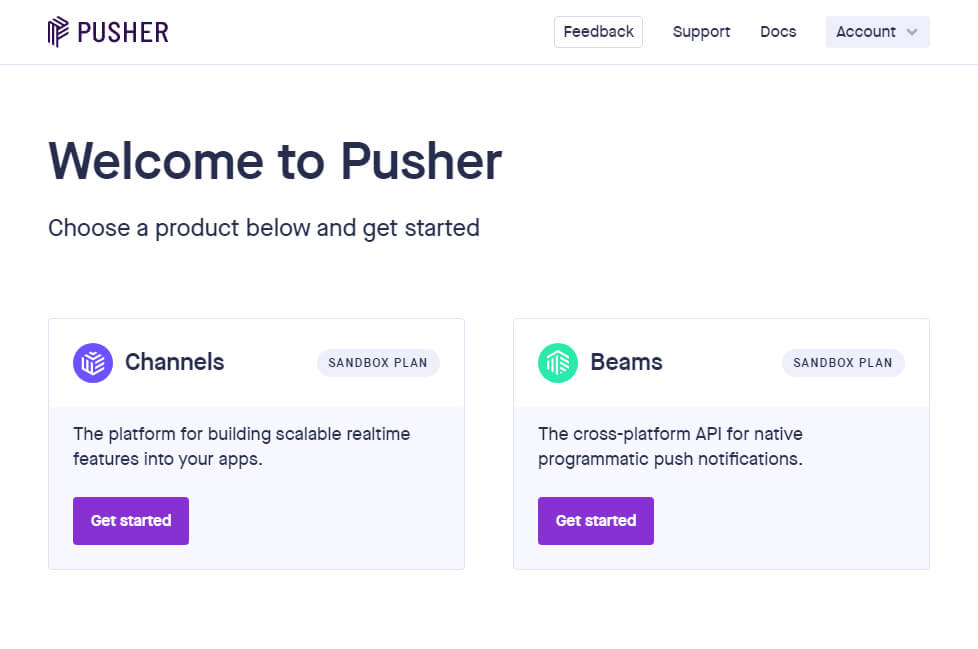
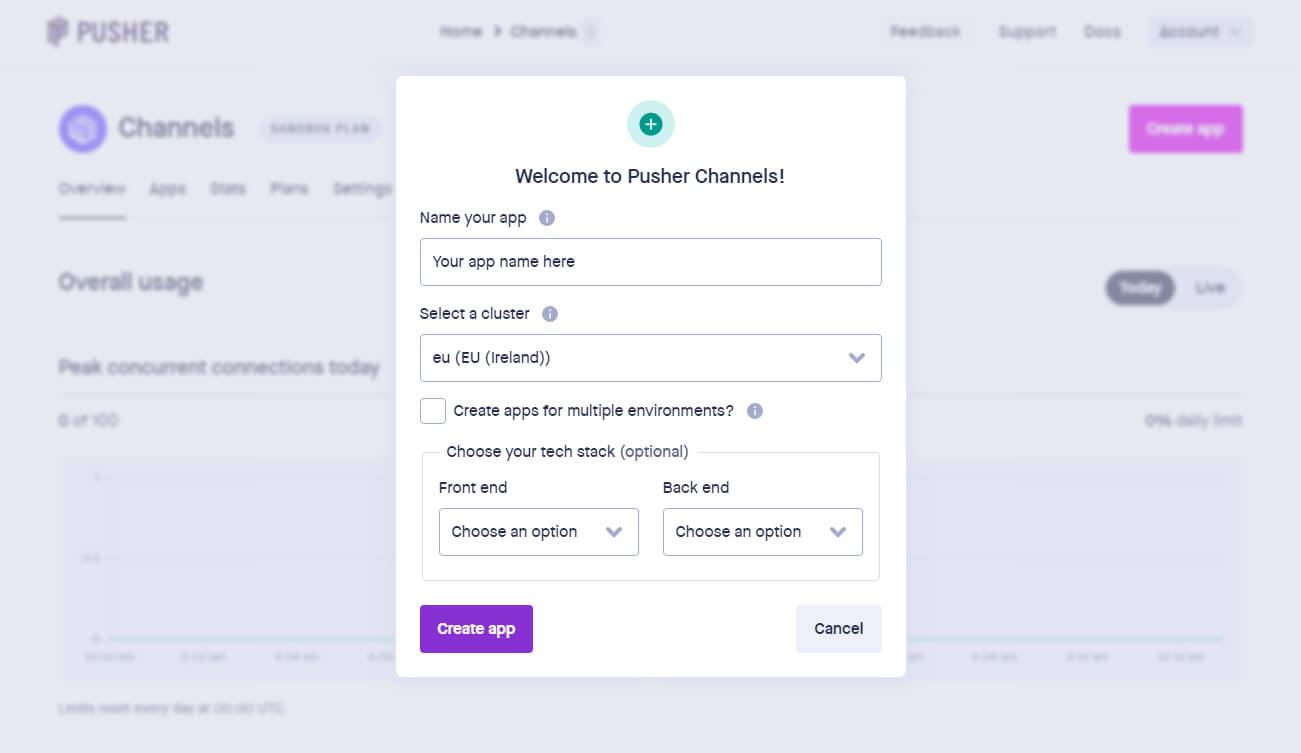
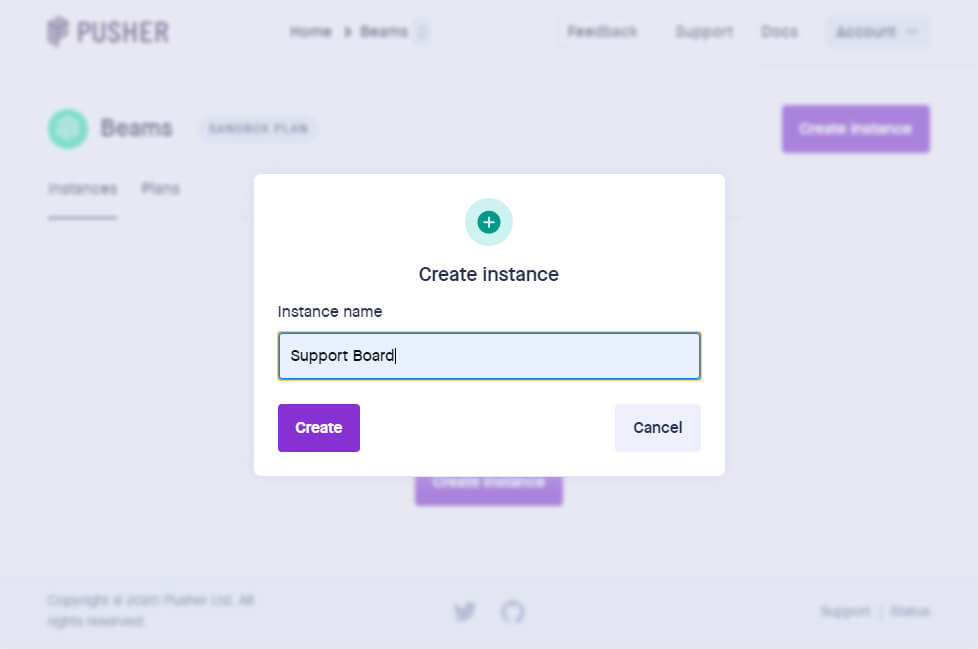
Enter the name of your app and choose the cluster closest to your location.
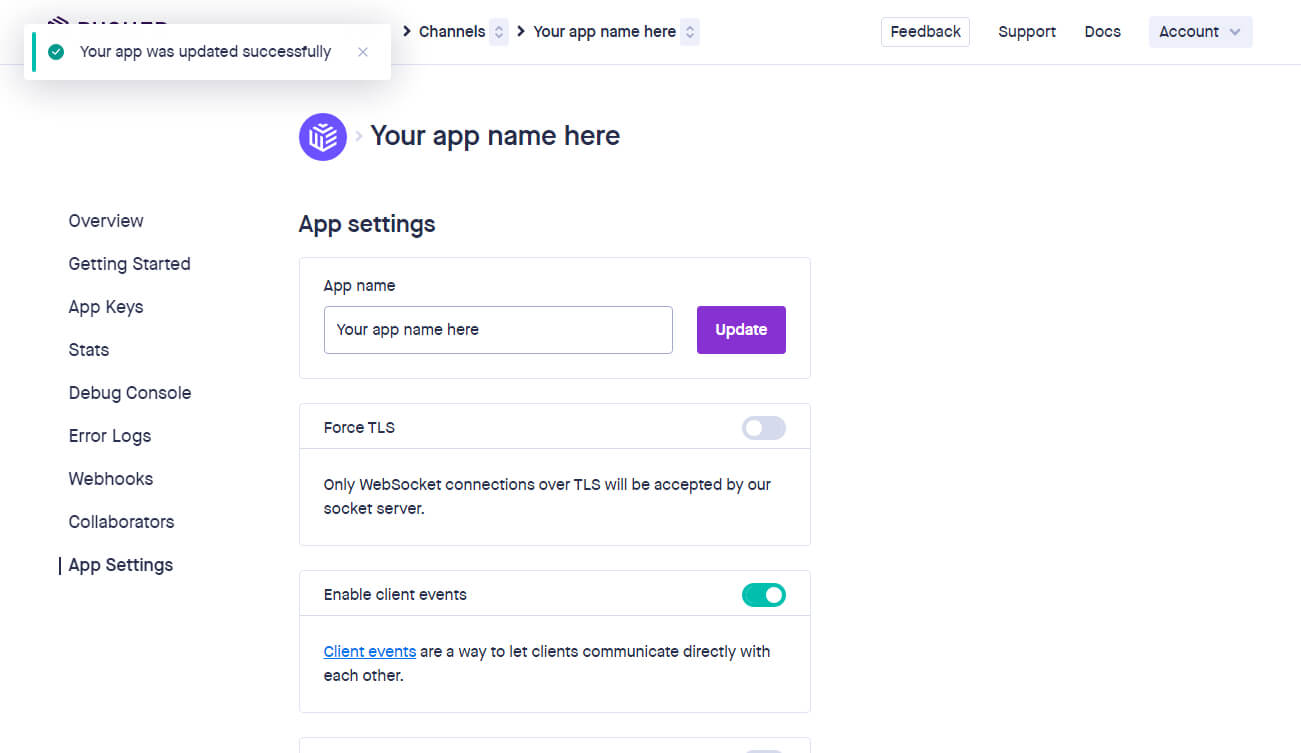
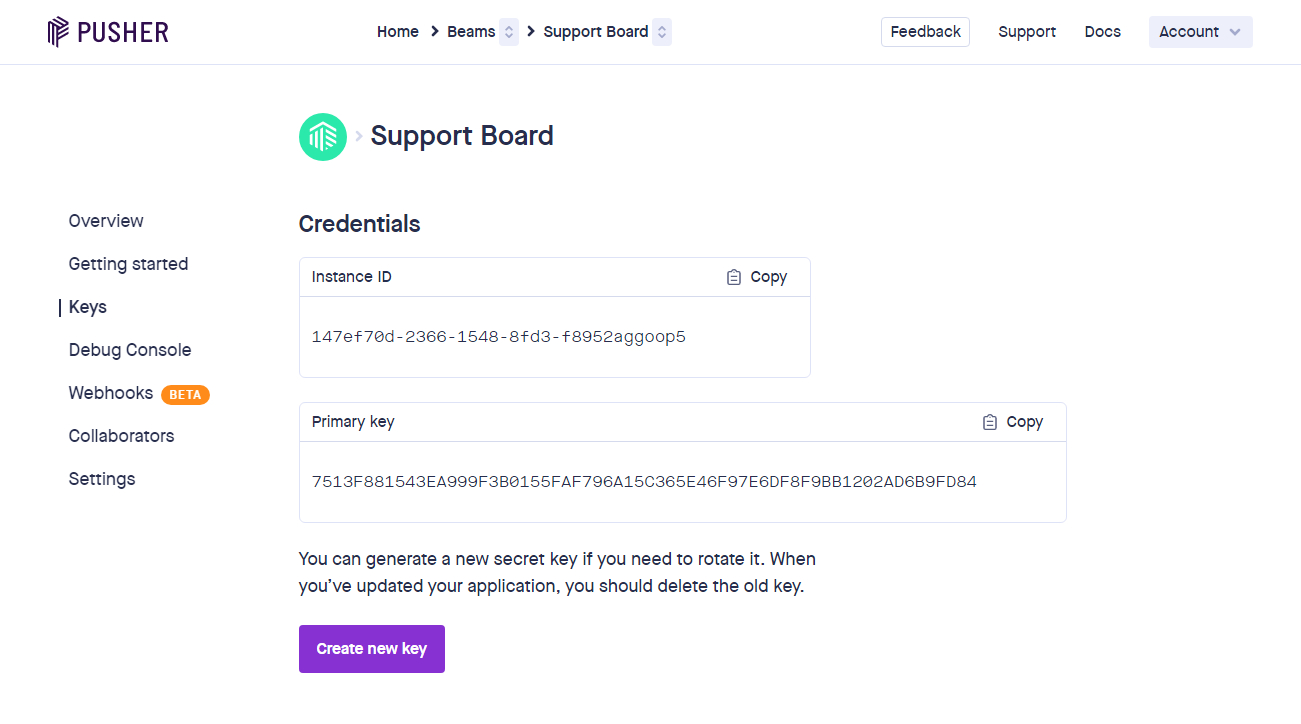
From the left menu of the dashboard click App Settings and enable client events.
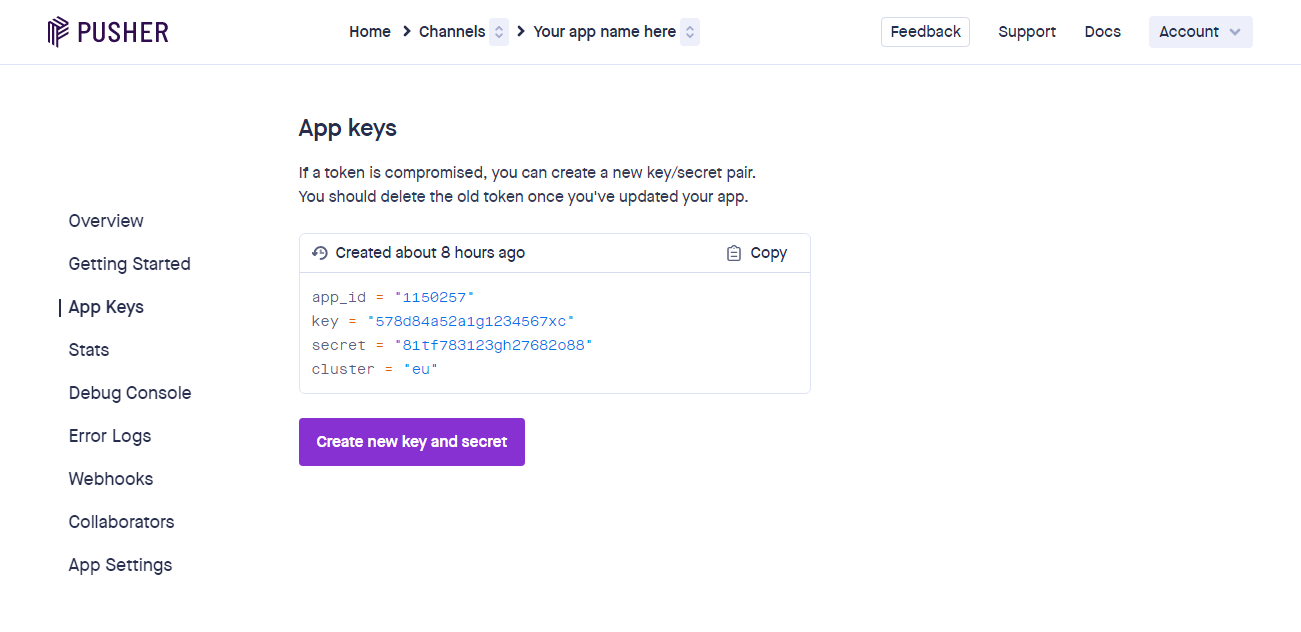
From the left menu of the dashboard click Keys, copy App ID, Key, Secret, Cluster.
Go to Settings > Miscellaneous > Pusher, and paste app ID, key, secret, cluster.
You're done.
Information
Pusher is free to use for up to 200k messages and 100 concurrent connections per day.
Messages are used for the following functions and more: user registration, online user status, chat messages, and chatbot messages.
Pusher channels count calculation is explained here.
When Pusher is active the following AJAX requests are replaced by WebSockets: checking for new messages, checking for new conversations, online/offline status, typing status, online users list.
When Pusher is active the last activity value of users and agents is updated only on page load or when they send new messages.
When Pusher is active the option Settings > Users > Register all visitors is automatically activated and it can not be disabled.
If your server becomes overloaded, crashes, experiences excessive RAM usage, high CPU usage, or in general, slows down or has performance issues, activate Pusher.
Direct messages
Direct messages allow you to send а single chat message, email, or text message, to a single user or several users. Read the information below to understand how it works.
To send a message go to the Users area and click the direct message icon.
Direct message buttons are also available in the profile box of the user.
To send a message to all users, enter All in the User IDs field.
To send a message to a group of users, enter their IDs in the User IDs field.
You can check the users and then click the direct message icon to enter the IDs automatically.
The chat message is sent to the active conversation, if any, otherwise to a new conversation.
If the Settings > Notifications > User email notifications option is active, all users with an email are notified via email.
If the Settings > Notifications > Text message notifications > Active for users option is active, all users with a phone number are notified via text message.
If the Settings > Notifications > Push notifications option is active, a push notification is sent to all users.
The message is also sent to messaging apps such as WhatsApp and Messenger if the user is connected to them.
To send a message to all users of a single messaging app enter one of the following strings: whatsapp, messenger, instagram, telegram, twitter, zalo, wechat, viber, line.
Enter tickets to send a message only to the users who created a Support System ticket via the Tickets app.
Direct email
Email header and email signature are automatically included in all emails, set them from Settings > Notifications.
The HTML language is supported.
The subject supports merge fields.
Direct text messages
To enable direct text messages you must enable the SMS in Settings > Notifications > Text message notifications.
Automations allow running multilingual automatic tasks when conditions set by you are met.
To delete a condition, set it to empty. To disable an automation, delete all conditions.
Automations are sent only 1 time to users.
If you used an automation in the past, and users already received it, you need to delete the automation and create a new one to show it to the users.
Repeat only works if used in conjunction with date time.
When date time is used in conjunction with the criteria is exactly, the value must not contain hours and minutes (hh:mm). Ex. 25/10/2021 (25/10/2021 10:30 will not work).
The Settings > Users > Register all visitors option must be active if there are message automations that are executed on page load.
City, countries, languages work automatically only if both the settings Settings > Users > Register all visitors and Settings > Users > Full visitor details are enabled.
Cities work only if the user detail location is set and equal to city, country, or if the user detail city is set.
Countries work only if the user details country_code, or country is set, or if the user detail location is set and equal to city, country. The country name must be in english.
languages work only if the user details browser_language, or language is set.
A visitor is a Returning visitor only if it visits the website again after 24h or more.
The pop-ups appear only if the chat is closed, and they overwrite the default pop-up. You can check the message fallback option to send a message instead of showing the pop-up if the chat is open.
You may need to enable Settings > Users > Register all visitors if you want to send an automated message to new users.
Chat messages and popup fallback messages are sent only if the last user or agent message of the conversation is older than 10 minutes.
This feature prevents unwanted automated messages to be sent during an agent-user conversation.
The Custom variable condition check for the JavaScript variables with the given names and values.
For example, the condition example=ABC is met if into the chat's page there is this JavaScript code: var example = "ABC";.
Add multiple variables separated by commas.
Automations are not compatible with the messaging apps like WhatsApp, Messenger, Instagram, Telegram, Twitter, Zalo, WeChat, Viber, Line.
To get the List ID, enter in SendGrid and click Marketing > Contacts(https://mc.sendgrid.com/contacts), then click on a list, or create a new one. The last part of the URL is the list ID. Ex. https://mc.sendgrid.com/contacts/lists/8558c1e7-3c99-4428-a68f-78df2e437f8e (the list ID is 8558c1e7-3c99-4428-a68f-78df2e437f8e).
Elastic Email
To get the Key, enter in Elastic Email, then click Settings from the top right profile menu. Click Create Additional API key (https://elasticemail.com/account#/settings/new/create-api), set a name and choose Plugin or Full access, or Custom and make sure the permission Contacts is set to View & Modify.
The List ID is the list name. Important! Existing list's or segment names must not have any spaces in them.
Campaign Monitor
To get the Key, enter in Campaign Monitor, then click Account settings from the top right profile menu. Click API keys > Generate API key.
To get the List ID, enter in Campaign Monitor, then click List and subscribers from the top menu. Select a list and then click Settings from the left menu and copy the List API ID.
HubSpot
To get the Key, enter in HubSpot, then get go to Settings > Integrations > Private apps and create a new app.
Enter app name, then open the Scope tab and add the following scopes: crm.lists.write, crm.lists.read, crm.objects.contacts.read, crm.objects.contacts.write.
Click Create app and copy the token. Paste the token into the Key field of Support System.
To get the List ID, enter in HubSpot, then get it from Contacts > List > List details.
Moosend
To get the Key, enter in Moosend, then click Settings > API key.
To get the List ID, enter in Moosend, then get it from Audience > Email lists.
GetResponse
To get the List ID, enter in GetResponse, then get it from Lists > Your list > Settings(https://app.getresponse.com/lists). Copy the List token value.
To get the Key, enter in ConvertKit, then get it from Settings > Advanced > API secret.
To get the List ID, enter in ConvertKit, then get it from Grow > Landing Pages & Forms. Open you form and copy the numeric part of the URL. For example the ID of the form with URL https://app.convertkit.com/forms/designers/3003412/edit is 3003412.
ActiveCampaign
To get the Key, enter in ActiveCampaign, then get it from Account settings > Developer.
To get the List ID, enter in ActiveCampaign, then get it from Left menu > Lists or Left menu > Contacts > Lists.
Open your list and copy the list ID in the URL. For example the ID of the list with URL
https://schiocco.activehosted.com/app/contacts/?listid=1&status=1 is 1.
The list ID must be in this format: domain:list-ID. The domain is the first part of your dashboard URL. For example the domain of https://schiocco.activehosted.com/ is schiocco and the final value to insert in Support System is schiocco:1.
MailerLite
To get the Key, enter in MailerLite, then get it from Left menu > Integrations > MailerLite API.
To get the List ID, enter in MailerLite, then get it from Left menu > Subscribers > Groups.
View a group and copy the Group ID from the URL (e.g. ....group=18783408688903967...).
To get the List ID, enter in MailerLite, then get it from Contacts > Contacts lists > Your list.
Get the List ID by clicking the ? icon next to the lists's email, e.g. 1202546.
Sendy
To get the Key, enter the Sendy settings area and copy the API KEY.
To get the List ID, enter your brand, then click View all lists and copy the list ID.
The list ID setting must also include your Sendy full URL. Enter the URL plus the list ID spearated by the char |, e.g. https://example.com|TDf6o892Mx11VXGC51ui567u.
SendFox
To get the Key, enter in SendFox, then get it from Settings > API > Personal Access Tokens.
To get the List ID, enter in SendFox, then get it from Audience > Lists.
Open a list and copy the ID from the URL (e.g. the List ID of the URL https://sendfox.com/dashboard/lists/489151/contacts is 489151).
Amazon Web Services
Amazon S3
Upload attachments to your Amazon S3 bucket instead of the server where Support System is installed.
Follow the steps below to set it up.
Enter the IAM dashboard and click Left menu > Access management > Users.
Click Add new user, enter the username and continue.
Select Add user to group and on the User groups section below click Create group.
In Permissions policies search for AmazonS3FullAccess and select it. Click Create user group.
Assign the new group to the user you are creating and continue, then click Create user.
Select the newly created user and open the Security credentials tab.
In the Access keys area, click Create access key and select Application running outside AWS.
Continue until you get the keys and save them in Support System > Settings > Miscellaneous > Amazon S3.
Visit the Amazon S3 dashboard and click Create bucket.
Set the bucket name and region you want. Save the region and name in Support System > Settings > Miscellaneous > Amazon S3.
Check ACLs enabled and Bucket owner preferred.
Uncheck Block all public access and all related checkboxes.
Click Create bucket.
This feature is technical and optional. Support does not cover any help related to this feature.
Be aware that it may take up to 24 hours for a newly created bucket to become active.
If you have recently created an S3 bucket and it is not working, wait for 24 hours and try again.
More settings
Saved replies
Saved replies, also known as canned messages, refer to a collection of pre-written messages that agents can quickly access and employ in the chat editor.
Saved replies can be printed by typing # followed by the saved reply name, plus a space.
The saved replies pop-up can be opened by typing ##.
Use \n to do a line break.
If you are using the Dialogflow chatbot, the saved replies panel search will include results from Dialogflow Intents.
You have the option to add all Dialogflow Intents to the saved replies list by using the option at Settings > Artificial Intelligence > Google > Add Intents to saved replies.
NOTIFICATIONS
Notifications
To understand how notifications work and when they are sent read the information below.
If you think notifications are not working, most probably you're just testing them in the wrong way, please read the information below before asking for support.
Email notifications
Both agents and users can receive an email notification when a new message is received.
Email notifications for admin and agents
When a user sends their first message, if the conversation is assigned to a department, an email is sent only to the agents assigned to that department, if the conversation is assigned to a specific agent, an email is sent only to that agent, otherwise an email is sent to all agents who are not online at the moment.
Subsequent emails are sent only to the last agent in the conversation.
Email notifications are sent only if the last agent in the conversation is offline.
If you're using the Artificial Intelligence app, and Settings > Artificial Intelligence > Human takeover is active, no emails are sent if the chatbot knows the answer.
To prevent admins from receiving email notifications check Settings > Notifications > Do not send email notifications to admins.
Email notifications for users
When an agent sends a message to a user, an email is sent to the user only if the user is offline.
Only 1 email is sent. Subsequent messages will not trigger a new email alert.
Create the email
To manage the emails and create the contents go to Settings > Notifications.
You can use text and HTML. New lines are automatically converted to <br />.
You can use the following merge fields in the email. Merge fields are automatically replaced with the updated information.
Merge field
Description
{recipient_name}
The name of the user or agent who is receiving the email.
{sender_name}
The name of the user or agent who was sending the message that triggered the email notification.
{sender_profile_image}
The profile image of the user or agent who was sending the message that triggered the email notification.
{message}
The links to any attachments that were part of the message that triggered the email notification.
{attachments}
The emails attachments.
{conversation_link}
A link to open the conversation in the admin area. This merge field is only available for agent's emails.
{conversation_id}
The conversation ID.
Cron job
You can run the following cron job for sending email notifications to both users and agents, in which case you also need to select Settings > Notifications > Email notifications via cron job.
Sending emails via cron job will improve your email notifications: they will include the whole conversation and will be sent only 1 time.
You can create a cron job that runs the URL [SUPPORT-SYSTEM-URL]/include/api.php?email-notifications=true.
Use the command */59 * * * * wget [SUPPORT-SYSTEM-URL]/include/api.php?email-notifications=true to run it via a command.
Replace [SUPPORT-SYSTEM-URL] with your Installation URL, get it from Settings > Miscellaneous > Installation URL.
If you are using the cloud version, use this URL: https://cloud.support.system/script/include/api.php?email-notifications=true&cloud=API-TOKEN and replace API-TOKEN with your API token.
Our support doesn't include assistance with this feature, as it is for advanced users and related to your server.
For help with this, feel free to hire us.
Problems?
You can test the email feature by sending an email from Settings > Notifications > Send an agent email notification.
Emails may not be delivered several reasons; below are the most common ones:
Reason
Description
Solution
Hosting problems
The email server of your web hosting provider is not able to send emails or the emails are sent
but they are automatically detected as spam and deleted by the email clients.
If the settings at Settings > Notifications > SMTP are not set, your server will send the emails instead.
Contact your web hosting provider regarding email support or use your SMTP server by activating it in Settings > Notifications > SMTP.
SMTP problems
The email is not sent also if you activated the SMTP option in the Notifications area.
If you don't receive the emails make sure they are working by sending a test email from Settings > Notifications > Send a user email notification or Send an agent email notification.
If you don't receive the test email, your SMTP server, is not working. Open the browser console for more details about the error.
Because this is not an issue related to Support System , the support doesn't cover it, please contact your server/hosting/SMTP support instead.
You can use sendgrid.com, you can send 40000 emails for 30 days for free, then 100/day forever for free.
Google Gmail
The email is not sent also if you activated the SMTP option in the Notifications area and you are trying to the Gmail SMTP server.
For Google Gmail and Google Workspace emails, you need to replace your Google password with a Google app password, details on https://support.google.com/accounts/answer/185833 (Create & use App Passwords section).
Enter smtp.gmail.com as host and set 465 or 587 as port.
Push notifications
Push notifications are like Desktop notifications but with some key difference.
Desktop notifications, also called Web notifications, are requested directly by the client while Push notifications come from a server.
The main difference is that the Push notifications work always, also if your device is offline, or Support System is not open.
Also, they are persistent and always visible until closed.
Push notifications require an external service to work.
We support Pusher and OneSignal, they are free to use for up to 2000 users/devices.
Pusher does not support iOS devices. You need to use OneSignal if you have an iOS device.
Cloud version
The cloud version of Support System uses OneSignal by default, you do not have the option to configure it.
For the admin area everything is already configured and you only have to check the Settings > Notifications > Push notifications > Active for agents option, save the changes, and reload the admin area.
Activation - Pusher
Go to Settings > Notifications > Push notifications and select Pusher as provider.
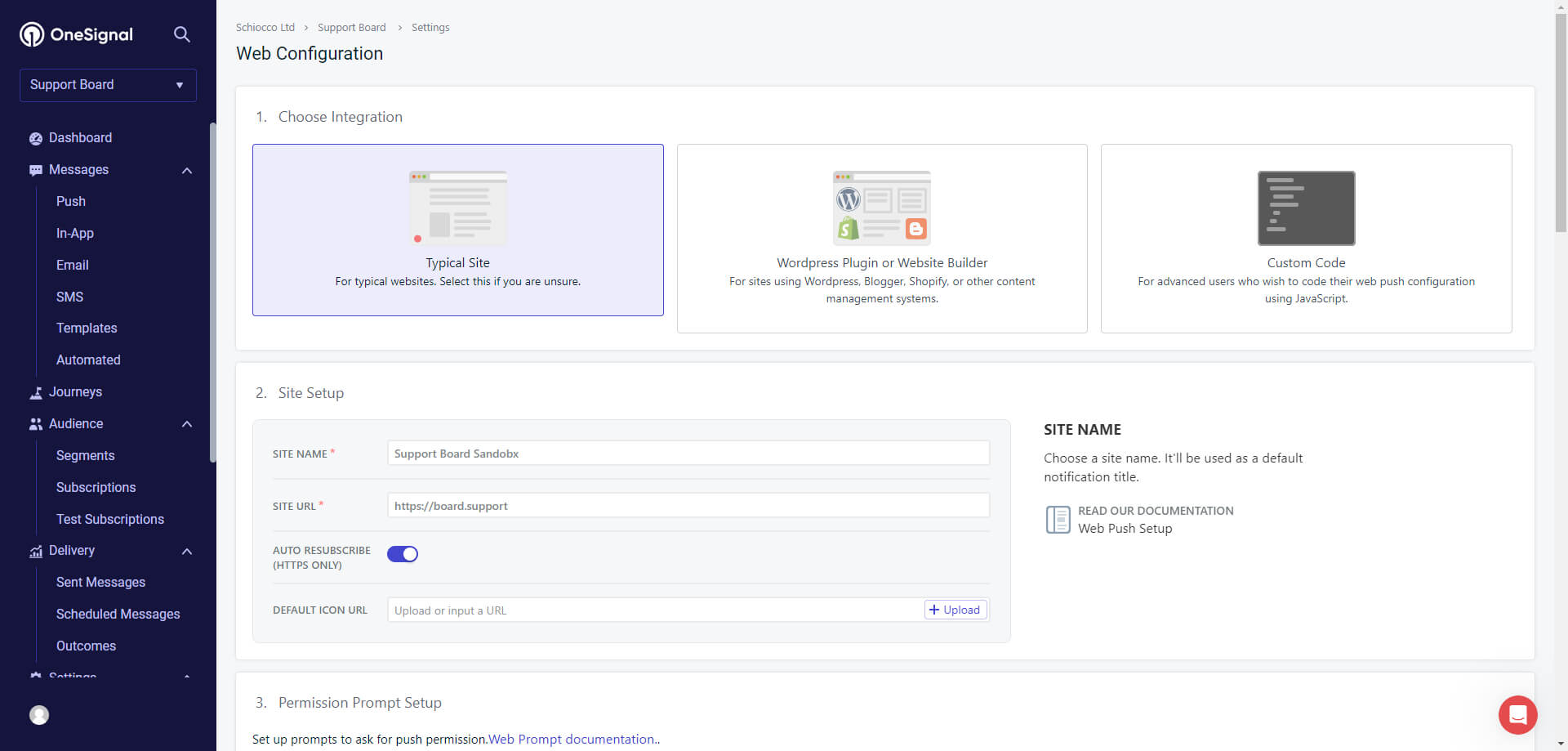
Go to Settings > Platform create a push notification integration and select the Web Configuration.
Enter a name and the domain where Support System is installed. Enter only the root domain URL, excluding the full admin Installation URL.
For instance, if the Installation URL is https://www.example.com/supportsystem/admin.php, just enter https://www.example.com.
If you are using the WordPress, you have to access the Support System admin area outside of WordPress, click here for more details.
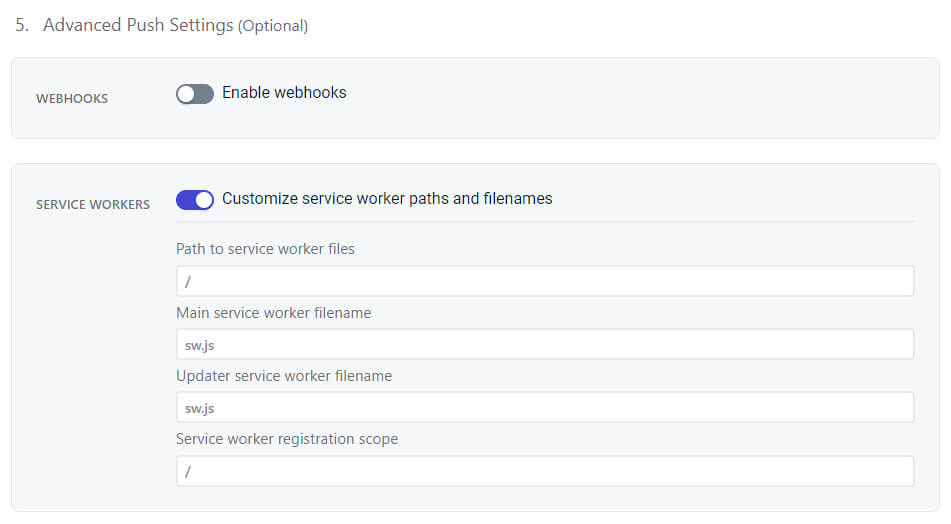
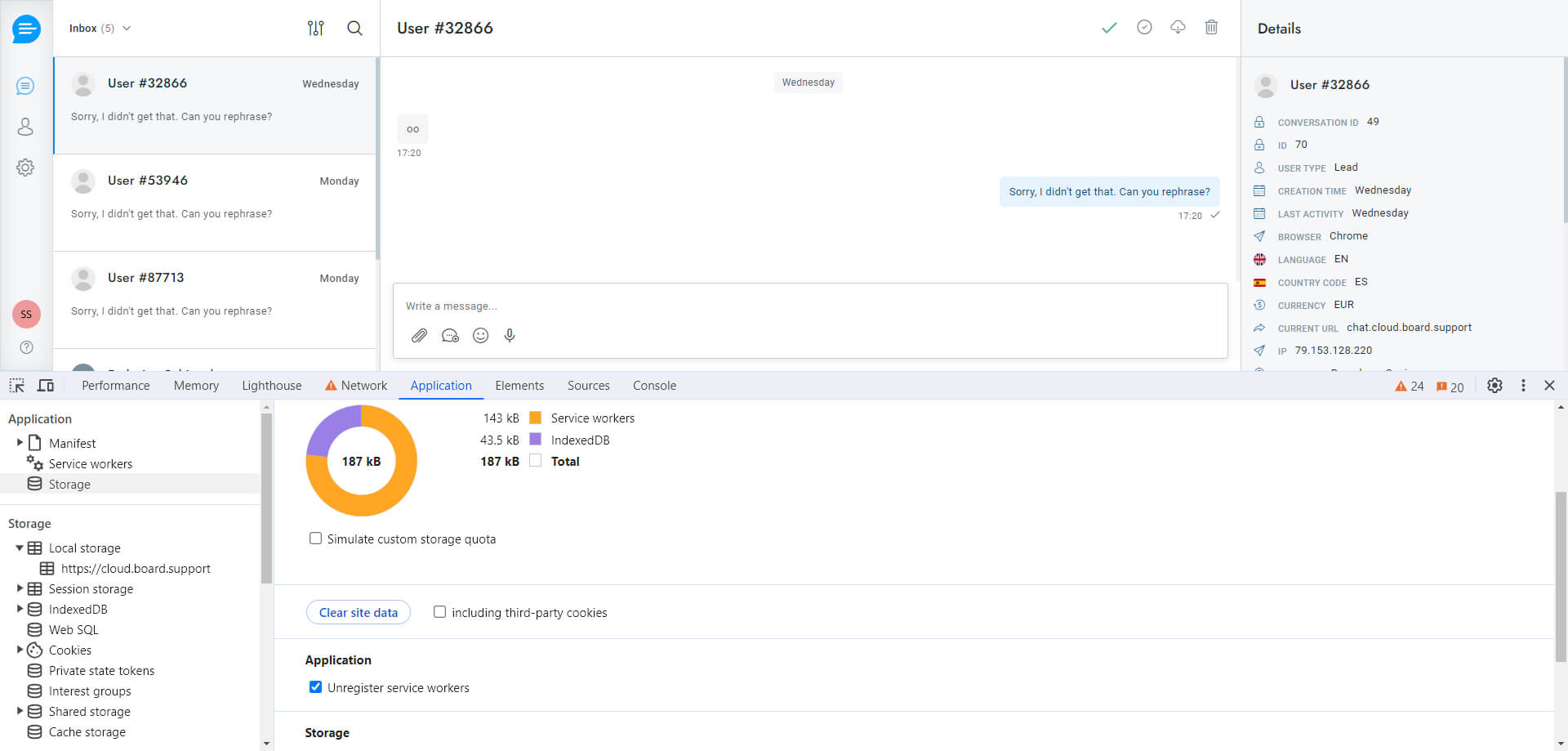
Scroll to Advanced Push Settings - Service Worker and enter the following service worker values.
Path to service worker files: get the value from Settings > Notifications > Push notifications > Service Worker path.
Main service worker filename: sw.js
Updater service worker filename: sw.js
Service worker registration scope: get the value from Settings > Notifications > Push notifications > Service Worker path.
Scroll to CLICK BEHAVIOR and as Matching Strategy select Origin: Take actions on a previous tab open to the same domain.
Click Save.
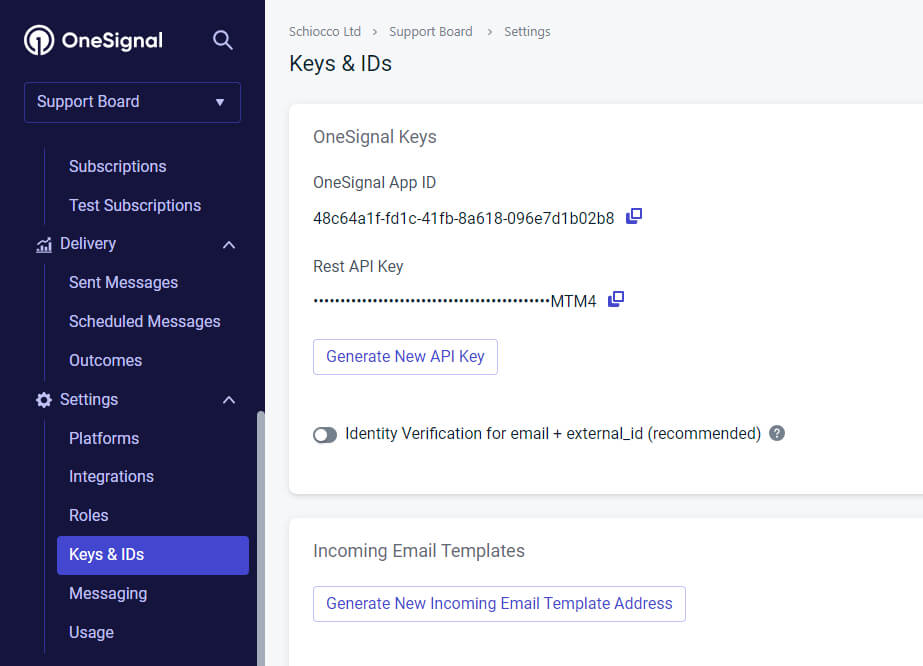
Go to Settings > Keys & IDs and copy AppID and Rest API Key.
Paste them into Support System > Settings > Notifications > Push notifications > App ID and API key.
Click Save changes.
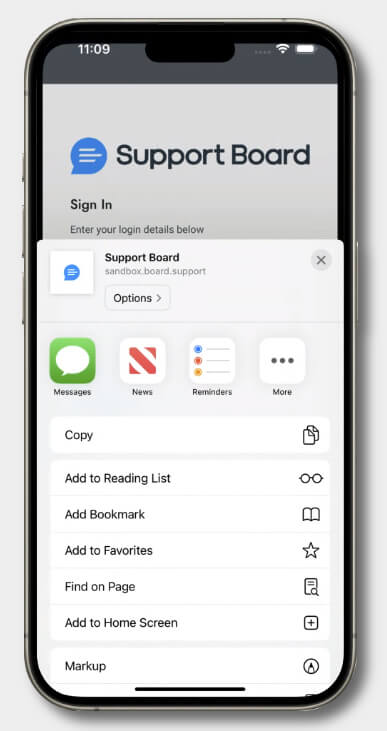
For iOS users only, access the Support System admin area via Safari, then click the Share button and select Add to Home Screen.
Reload Support System and you should see the prompt to activate the Push notifications. If you do not see it click Settings > Notifications > Push notifications > Subscribe.
Upload this file to your site at the following location: https://your-site.com/service-worker.js
Go to Settings > Notifications > Push notifications > Service Worker URL and enter the URL of the file.
E.g. https://your-site.com/service-worker.js.
You're done.
Information
Pusher is free to use for up to 1000 concurrent subscribers.
While you should be able to use the free plan for the admin area and all the agents, you may need a paid plan for Push notifications sent to the users depending on your site traffic.
Push notifications only work for full HTTPS websites. The only exception is localhost to ease development.
When a user click the notification the last page visited by the user is open and the chat is open automatically.
On desktop the browser needs to be running since that is the process that receives the push messages.
When Push notifications are active, they replace desktop notifications.
On Android and mobile devices, desktop notifications may not work, in which case you need to use Push notifications.
Push notifications can not be received on a desktop PC unless a browser is running.
Push notifications on iOS devices (iPhone) are available only from iOS 16.4.
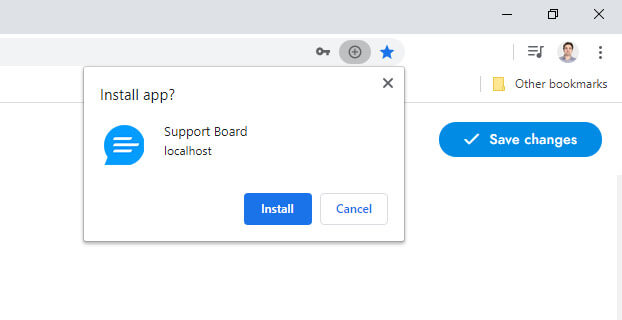
You need to install Support System as a PWA (details here).
You need to use OneSignal. Pusher does not support iOS devices.
When an agent click the notification the admin area is open and the right conversation is selected. If the admin area is already open the notification will not open a new tab.
When a user sends their first message, a Push notification is sent to all validated agents; subsequent notifications are sent only to
the last agent in the conversation.
If you're using the Artificial Intelligence app, and Settings > Artificial Intelligence > Human takeover is active, no notifications are sent if the chatbot knows the answer.
If you're using the WordPress version, Push notifications are not supported in the WordPress admin area, you need to access the Support System admin area directly, more details
here.
If the Routing setting is active, only the agent assigned to the conversation receive the notification, admins see all conversations but don't receive notifications.
If queue or routing settings are active, only the agent assigned to the conversation receive the notification.
Notifications are not sent for messages sent by the user while waiting in queue.
Admins see all conversations but don't receive notifications.
If a user conversation is assigned to a department, only the agents assigned to that department receive the notification.
If a user conversation is not assigned to any department, only agents with no assigned department receive the notification.
Notifications are sent only if the last agent in the conversation is offline.
If human takeover is active, no notifications are sent if the chatbot knows the answer.
If Push notifications are not working, make sure you allowed the notifications, in Chrome you can check this from Privacy and Security > Site settings > Notifications.
If they don't work on a mobile device, try these steps too: install the PWA or delete it and install it again, restart the mobile device.
If you are using Chrome, to enable Push notifications also when the tab is closed you must enable the Continue running background apps when Google Chrome is closed option from Chrome > Setting > System (chrome://settings/system).
If Push notifications are not working, make sure that the conversation is not assigned to a specific agent or a wrong agent ID.
Click here for more details.
If Push notifications are not working, and you are using Windows, ensure that the notification feature is not being blocked by Windows.
To do this, click on the Start button and search for Notifications. Then, open the Turn app notifications on or off option and verify that your browser is not being blocked.
If Push notifications are not working, ensure that the Support System admin area is not visible and open.
If the admin area is open, please minimize it or open another window or browser tab.
If Push notifications are not working, your system might be blocking them.
If you are using Windows 10+ check this link.
If you are on Mac check this link.
For all devices also check this link.
Desktop notifications
Desktop notifications
Desktop notifications are not sent if the user is viewing a page with include the chat (the user browser is open and visible, and the active page contains the chat).
Desktop notifications are not supported on iPhone and iOS devices.
Desktop notifications work only for secure URLs that use HTTPS (not HTTP). Your Support System admin URL must use HTTPS.
When Push notifications are active, they replace desktop notifications.
Both agents and users can be notified via text message when a new message comes in.
Text message notifications are provided by Twilio.
Twilio is a paid service, but it is cheap, and you can use the trial version to test text message notifications for free.
Once into the dashboard, click Get a Trial Number, then Choose this number.
Enter the Support System admin area, go to Settings > Notifications > Text message notifications, and paste account SID, auth token, trial number (or a purchased phone number).
Find all details in the Twilio dashboard.
If you're using the trial version, you can send notifications only to verified numbers.
Enter the Twilio dashboard and click the left button # (Phone Numbers), then click Verified Caller IDs and add your phone number.
To start using the service live and to receive text messages in Support System you need to purchase a phone number.
After the purchase go to Phone numbers > Manage > Active numbers, click your number, and enter the URL of Support System,
get it from Support System > Settings > Notifications > Text message notifications > Get configuration URL.
You're done.
Information
Ensure that your agents and admins are assigned a phone number so that agent text messages can be sent to the appropriate numbers.
All phone numbers must have the country code starting with the symbol + (eg. +15558675310).
You can get the user's phone number via registration form, follow-up message, or via [email] shortcode.
You can manually enter the user phone from the admin area or via API.
When a user sends their first message, if the conversation is assigned to a department, a test message is sent only to the agents assigned to that department, if the conversation is assigned to a specific agent, a text message is sent only to that agent, otherwise an text message is sent an email is sent to all agents who are not online at the moment. Subsequent text messages are sent only to the last agent in the conversation.
Text message notifications are sent only if the last agent in the conversation is offline.
If you're using the Artificial Intelligence app, and human takeover is active, no text messages are sent if the chatbot knows the answer.
To use the Sender ID feature enter the sender name in the Sender number field.
Sound notifications
When Settings > Notifications > Sounds are enabled, a sound will play whenever a new message or conversation is received.
Audio will only play when the user or agent engages with the document by clicking somewhere in the admin area or on the page displaying the chat widget.
This is because of a security feature of the browsers.
If the sound is set to repeat, it will loop as long as the admin area or the chat widget page is not open or minimized.
If the the admin area or the chat widget page is open and visible, you will not hear the sound.
AI
ARTIFICIAL INTELLIGENCE
The settings below are related to the Artificial Intelligence app.
Installation
From Settings > Apps, click Artificial Intelligence and enter your license key to install and activate the app.
More details here.
If you have the cloud version click Active.
Human takeover
The human takeover happens in these cases:
When a human agent replies to a user's message.
When the Settings > Artificial Intelligence > Human takeover option is active.
It is triggered automatically when the chatbot fails to understand a user's message or it can be requested manually by the user explicitly asking to contact a human agent.
General information
When the human takeover is activated the chatbot is automatically disabled for as long as the last human agent that replied to the conversation is online.
If no agents have responded to the conversation yet, the chatbot will remain active.
After that, the chatbot is activated again but no default fallback messages will be sent within 10 days of human takeover if the chatbot doesn't know the answer to the user's question in the same conversation.
You can force a Dialogflow message to be always sent by adding to the Intent the custom Payload value "force-message": true.
The chatbot is fully activated again if the conversation is archived or deleted.
If you're using Slack, no messages will be sent if the chatbot knows the answer. Once the human takeover is active all conversation's messages are sent to Slack.
When a human agent reply to a user the human takeover is activated automatically.
The human takeover feature is compatible with OpenAI and will continue to function even if the Dialogflow chatbot is deactivated.
To fully disable the chatbot on human takeover, check the option Human takeover > Disable chatbot.
If the human takeover is already active, it will not be activated again, and the human takeover message will not be sent.
The Fallback message will be sent instead.
Human takeover option
When the option Human takeover is active the following happens:
If enabled, the request is sent only if the message sent by the user is longer than 3 chars and contains at least two words. This optimization prevents mistaken requests.
The conversations to which the chatbot was able to answer correctly, are marked as read and moved at the bottom of the Inbox list.
When the user confirms the human takeover, or if it is automatic, the following happens:
The conversation is marked as unread and moved on top of the Inbox.
Any future user messages in the same conversation sent within 10 days of the human takeover will trigger agent notifications.
If agents email notifications are active, an email notification is sent to the agent assigned to the conversation, or, if the user's conversation is assigned to a department, to the agents assigned to that department, otherwise it is sent to all offline agents.
If Push notifications are active, a push notification is sent to the agent assigned to the conversation, or, if the user's conversation is assigned to a department, to the agents assigned to that department, otherwise it is sent to all offline agents.
If text message notifications are active, a text message is sent to the agent assigned to the conversation, or, if the user's conversation is assigned to a department, to the agents assigned to that department, otherwise it is sent to all offline agents.
No human takeover requests within 10 days of the human takeover will be sent in the same conversation.
If queue settings are active, the queue or routing is activated.
Manual human takeover - Dialogflow Only
You can manually trigger the human takeover by creating a new Dialogflow Intent with the following Custom Payload response:
{ "human-takeover": true }.
The manual takeover automatically notify agents via email and leave the conversation marked as unread.
To manually send a human take over request use the chips rich message with ID sb-human-takeover. Ex. [chips id="sb-human-takeover" options="Human support,Cancel" message=""].
Manual human takeover - OpenAI Only
The human takeover can be requested manually by the user explicitly asking to contact a human agent.
This setting is active by default.
This setting is not compatible with older OpenAI models like gpt-3.5-turbo.
OpenAI Assistant
To enable human takeover on an OpenAI Assistant add the following function in the OpenAI functions area:
                                    {
                                        "name": "sb-human-takeover",
                                        "description": "I want to contact a human support agent or team member. I want human support.",
                                        "parameters": {
                                            "type": "object",
                                            "properties": {},
                                            "required": []
                                        }
                                    }
WhatsApp, Messenger, Telegram, and other messaging apps
The make the human takeover request work on WhatsApp, Messenger, Telegram and the other messaging apps, you need to create a
new Intent with human-takeover as input Context, nothing as output Context, a
list of the user's most common confirmation messages as Training phrases(e.g. ok, yes)
and { "human-takeover": true } as Custom Payload response
.
Smart reply
Smart Reply suggests quick responses in real-time during a conversation.
Once active, you will see the suggested replies in the conversation area, if any.
Information
The Smart Reply feature initially checks for suggestions from the Dialogflow chatbot, provided it is active. If there is at least one suggestion, it will promptly display the results.
However, if Dialogflow is inactive, or there are Dialogflow suggestions, the OpenAI suggestions will be returned instead.
If the language detection feature is active, the smart replies will use language detection as well.
If the multilingual via translation feature is enabled, the smart replies will utilize multilingual translation as well.
To read the complete text of a smart reply, hover the mouse pointer over it for a duration of 3 seconds.
To restore the previous message, press the keyboard shortcuts CTRL + Z.
Optimal configuration for the chatbot
Support System provides powerful tools to assist you in the process of creating the chatbot.
Activate Artificial Intelligence > Google > Dialogflow chatbot.
If you have general or specific inquiries that require a definitive response, or if you want to use rich messages like buttons, the Dialogflow chatbot is the best option and it can work alongside the OpenAI chatbot.
The Dialogflow and OpenAI chatbots can work together simultaneously.
More details here.
Change the chatbot name from Settings > Users > Bot name.
Problems?
The most frequent reasons for OpenAI or Google not functioning properly are listed below.
For more details about the issue, open the browser developer tools and then the console tab, send a message through the Support System chat, and an error should appear in the console.
On Chrome you can open the console from Settings > More tools > Developer tools > Console.
You can hire us to make the synchronization for you, details at the hire us page.
OpenAI
Click the Settings > Artificial Intelligence > OpenAI > Troubleshoot problems button and check for any error.
If there is an error, it will be related to your OpenAI account, follow the error message instructions to fix the issue.
Make sure to check the option Settings > Artificial Intelligence > OpenAI > Chatbot.
If Dialogflow is enabled, OpenAI may not work correctly because your Dialogflow agent does not have the Fallback Intent. Please verify its presence on the Intents page, and if it's missing, you can create it again by following the instructions here.
To quickly check if this is the issue, you can disable Dialogflow and send a message consisting of 2-3 words. Then, check if the browser console has errors.
If the chatbot is not replying at all and you have some Google setting active, try to disable the Google settings and check if the chatbot is working.
If the training is not working as intended, for instance, if the chatbot is not responding to questions relevant to the training data, and no training errors are being shown, there may be file permission issues.
To address this, please ensure that the uploads folder includes the embeddings folder.
It must exists and contains files. This issue only affects the PHP or WordPress versions, if your are using the cloud version ignore this point.
If the training is not working as intended, for instance, if the chatbot is not responding to questions relevant to the training data,
try to delete all training data from Chatbot > Training > Informaion > Delete all training data and train the chatbot again.
If the training is not working as intended, for instance, if the chatbot replies are cut off or partially incorrect, try asking the same question a few more times. The responses should improve over time.
OpenAI is needs to learn from the user interactions.
If your training data is from a website, and the website is multilingual, make sure the lang attribute of the <html> tag contains the correct language.
Delete all of your OpenAI settings, leave only the OpenAI key and try again.
If you are using the cloud version, you can use our OpenAI key by setting Settings > Artificial Intelligence > OpenAI > Sync mode to Automatic.
If this resolves your problems, it means that the issue originates from your OpenAI account.
You need to purchase credits to use this option.
Google
Click the Settings > Artificial Intelligence > Google > Troubleshoot problems button and check for any error.
If there is an error, it will be related to your Google account, follow the error message instructions to fix the issue.
Make sure to check the option Settings > Artificial Intelligence > Google > Dialogflow chatbot.
If your synchronization was not successful we suggest reviewing our documentation and repeating the synchronization steps to correct any errors.
If needed, we provide integration services. Details at the hire us page.
The settings below are related to the Artificial Intelligence app.
Synchronization
Automatic sync mode
This feature is available only on the cloud version of Support System.
The automatic sync mode is ready-to-use and does not require any additional settings. Set it at Settings > Artificial Intelligence > OpenAI > Sync mode.
If you want to activate the chatbot, check Settings > Artificial Intelligence > OpenAI > Chatbot.
The OpenAI (ChatGPT) integration gives your chatbot the ability to answer general questions about almost anything you can imagine.
To start using it, follow the steps below.
Get an API key from https://beta.openai.com/account/api-keys and paste it into Settings > Artificial Intelligence > OpenAI > API key.
If you are using the cloud version, set Settings > Artificial Intelligence > OpenAI > Sync mode to Manual.
Enable the chatbot from Settings > Artificial Intelligence > OpenAI > Chatbot.
Enable the Settings > Artificial Intelligence > OpenAI > Chatbot option, and save your changes.
Your chatbot should now be active.
he playground is accessible from the Chatbot area, which you can find by clicking the 🙂 smile icon on the left menu.
If the chatbot isn't working, click the Settings > Artificial Intelligence > OpenAI > Troubleshoot problems button and follow the instructions.
This feature is related to the Settings > Artificial Intelligence > OpenAI > Chatbot mode option.
It allows you to configure the information OpenAI will use to respond to user messages.
Only general questions
OpenAI will respond only to general questions and questions related to previous user messages in the same conversation, without using any information you provide.
This is the default setting.
Only questions related to your sources
OpenAI will only respond to questions related to the information you provide. The user messages will be ignored.
You have to first train the chatbot with your sources.
All questions
OpenAI will only to questions related to the information you provide, to general questions, and to questions related to previous user messages in the same conversation.
You have to first train the chatbot with your sources.
This is the recommended mode.
If you are using the cloud version you have to set Settings > Artificial Intelligence > OpenAI > Sync mode to Manual and use your own API key.
You can use multiple assistants by adding their IDs in Settings > Artificial Intelligence > OpenAI Assistants - Department linking and selecting Assistant in Settings > Artificial Intelligence > OpenAI > Chatbot mode.
To activate an assistant, both the assistant and the conversations must be assigned to a department.
The assistant is used only for the chatbot, and smart replies, not for the message rewriting and other features.
Chatbot
The OpenAI chatbot feature functions similarly to Dialogflow, providing automated responses to user messages.
Select the Chatbot mode setting to specify the questions that the chatbot is capable of responding to.
Utilize the human takeover feature to enable the chatbot to redirect the chat to a human agent as necessary.
Fallback message
The fallback message is sent when OpenAI is unable to understand the user question.
If the Dialogflow chatbot is enabled, the fallback message will be turned off and the Dialogflow chatbot's fallback message will be utilized instead.
Prompt
The prompt instructs OpenAI on how to respond by providing relevant information that can be utilized to answer user inquiries.
To comprehend the process, refer to the example prompts listed below.
If you choose to activate the human takeover feature, you need to tell OpenAI to respond with I don't know if it is unable to provide an answer to the user's question.
You should always include the following text in the prompt: Respond "I don't know", if not sure about the answer.
Prompt - Message rewriting
This prompt instructs OpenAI on how to rewrite a message when the Message rewrite button is active.
This prompt should be in English. Support System automatically add the following text when required: and use the user langauge, add greetings.
Replies from the training sources can be utilized with the prompt feature as they are compatible.
Spelling correction
This feature automatically fix any spelling mistakes in the agent's message.
Training data language
If you are using training data and your chatbot is multilingual, set here the default training data language.
Leave it as default if the training data default language is in English.
Smart reply
This feature allow to enable the Smart Reply feature also if the chatbot is not active.
If the chatbot is active the Smart Reply feature will use OpenAI automatically.
Dialogflow spelling correction
In the case where Dialogflow is unable to find the appropriate response to the user's message, this function verifies if there are any spelling errors.
If any such errors exist, Dialogflow is prompted again with the correctly spelled version of the message for an accurate response.
Although it has a higher priority, this feature can still work together with the Google search spelling correction feature.
Message rewrite button
This feature adds a button to the text field of the conversation area, click on it to rewrite your message and make it more friendly and professional.
Greetings will be added automatically if there is no previous agent messages.
If your language is not English, you have to edit your agent/admin profile and set the correct language.
Speech recognition
When this option is active, audio messages will be converted to written text.
You do not need to activate this feature for the chatbot to understand audio messages.
The speech recognition feature of the chatbot is always enabled.
For this feature to work better, the user language should be know.
To automatically detect the user's language, you can enable the language detection feature.
The text will be displayed alongside the audio player.
The generated text is compatible with the translation features.
Image recognition
When this option is enabled, the chatbot analyzes and interprets images sent by the users.
Only GPT-4 models and newer support this feature.
This feature does not work on localhost, it requires an online server or AWS S3.
Source links
When this option is active, the response will automatically include the links to the sources and training data used for generating the answer.
To include articles as sources you have first to set the articles page in Settings > Articles > Articles page URL.
Note data scraping
When this option is active, you will see a menu in the notes panel.
The menu enables the automatic extraction of specific information from the user's messages.
OpenAI parameters
Support System allows you to adjust various OpenAI parameters such as temperature and logit_bias, for more details visit https://platform.openai.com/docs/api-reference/completions/create.
Don't set any values if you don't know what these parameters do or OpenAI may stop working.
Logit bias
The Logit bias parameter must be JSON string and the keys must be strings, for example: {"2435":-100, "640":-100}.
Generate user questions
When this option is active, OpenAI will generate new user questions in real time when you open the chatbot training panel.
Use conversations for training
Automatically use conversations to train the chatbot at regular intervals.
You will find the training data in Chatbot > Training > Conversations.
The training is done via cron job every 24 hours.
Only user and agent messages are used, chatbot messages are ignored.
More details here.
Context awareness
When this option is enabled, OpenAI will recognize the context of the web page from which the user is writing the message.
The context includes only the page's meta title and meta description texts. T
his option is supported solely for the chat widget and is not compatible with messaging channels.
Training
With this feature, your chatbot can undergo training using your website, texts, PDF documents and more.
Once the training is successfully completed, the chatbot will be able to answer questions related to your contents.
Training using files
This training process enables you to train the chatbot using PDF and TEXT files.
To access this feature, navigate to Chatbot > Training > Files.
Select your files, click the Train chatbot button and await completion of the training process.
It is only possible to upload files in PDF and TXT formats.
As soon as the training is completed, the uploaded files are removed.
Training using a website
This training process enables you to train the chatbot using websites.
To access this feature, navigate to Chatbot > Training > Website.
Enter the website URLs, click the Train chatbot button and await completion of the training process.
If you retrain the same website, you must first delete the previous website's training data; otherwise, only new URLs will be trained.
You can provide the website URL and all child URLs will be included and crawled, but with large websites, it is more efficient and less prone to errors and infinite link loops to utilize an XML sitemap instead of relying on the website URL.
You can create it with a service like https://www.xml-sitemaps.com.
If you want to train your chatbot using specific pages from your website instead of all of them, you can make use of an XML sitemap.
Create one using a tool like https://www.xml-sitemaps.com, and then remove the pages you do not wish to include by editing the file in a text editor.
To use the XML sitemap, you need to upload it either onto your server or an external online location.
Afterward, add the URL of the sitemap in Chatbot > Training > Website.
If your sitemap contains more than 1000 URLs, it's advisable to split it into multiple files and train the chatbot with one file at a time to prevent server crashes.
You can upload large files and your XML sitemap with a service like https://tmpfiles.org.
Training via questions and answers
This training process enables you to train the chatbot by adding questions and answers individually.
To access this feature, navigate to Chatbot > Training > Q&A.
This training process enables you to train the chatbot using the conversations from the users and agents.
To enable this feature, check the Settings > Artificial Intelligence > OpenAI > Use conversations for training option.
The training data will begin to be generated in the coming days and will be available in the Chatbot > Training > Conversations area.
While this method is powerful and automated, it can produce low-quality training data if the responses from your human agents or the user messages are unhelpful or incorrect.
We strongly recommend reviewing the training data regularly.
This method is not recommended for most chatbots. Use the chatbot training panel instead.
Training using the chatbot training panel
Once you have finished training your chatbot, you may want to continue enhancing it.
This feature allows you to select conversation messages and use them to add new questions and answers or improve existing ones.
You can open the chatbot training panel from the conversation area by hovering the mouse over a message, opening the message's menu, and selecting Train chatbot.
If Dialogflow is active, a new Intent will be added to the main Dialogflow agent.
If OpenAI is active, the OpenAI chatbot will be trained automatically with the new information.
You can control the questions and answers generated from this window from Chatbot > Training > Questions and answers.
The Services to update option let you choose what chatbots to update. When updating a Dialogflow Intent, a new OpenAI question and answer will be generated.
The training window is not compatible with OpenAI assistants.
Training using real-time information
This feature allow the chatbot to answers to questions that require real-time information, such as, "What is the temperature in London today?".
To add new training data, simply train the chatbot again.
The previous training data will not be lost, and only the new sources will be added.
If you are using the cloud version, there are character limits for training the chatbot.
However, if you are using the PHP or WP version, there are no limits imposed.
You can view the character limits here.
The embedding model is essential for training your chatbot and handling all user messages.
We currently use the text-embedding-3-small model.
It is necessary for these scenarios and cannot be disabled or changed.
You can find pricing information at https://openai.com/pricing.
Check out the pricing for the text-embedding-3-small model in the Embedding models section.
Go to Chatbot > Training > Information, and click the Delete all training data button to remove all previous training data for the chatbot.
The embeddings are stored as JSON files in the Support System uploads folder and are secured using the password-by-filename approach.
Run the training via cron job
If you're using the cloud version, just enable the Settings > Artificial Intelligence > OpenAI > Training via cron job option and the cron job will be activated.
You can disregard the instructions below.
To automatically train the chatbot with your website content at regular intervals, create a cron job that runs the URL [SUPPORT-SYSTEM-URL]/include/api.php?open-ai-training=true, or use the command */59 * * * * wget [SUPPORT-SYSTEM-URL]/include/api.php?open-ai-training=true to run it via a command.
Replace [SUPPORT-SYSTEM-URL] with your Installation URL, get it from Settings > Miscellaneous > Installation URL.
If you are using the cloud version, use this URL: https://cloud.support.system/script/include/api.php?open-ai-training=true&cloud=API-TOKEN and replace API-TOKEN with your API token.
For the cloud version, the cron job can be executed at most once every 7 days.
We strongly recommand providing an XML sitemap instead of the website URL for performance reasons.
Automatic training is limited to websites; files, Q&A, and articles are excluded. Re-training will delete the previous website training data.
Multilingual training
If your user base is multilingual, you can train the chatbot with content in multiple languages and limit the chatbot to retrieve answers only from the sources in the user's language.
To activate this feature, check the Settings > Artificial Intelligence > OpenAI > Multilingual Training Sources option.
Files Files currently support only one language.
Websites The language of the website is detected automatically.
For Support System to comprehend the language of your web pages, the <html> must contain the attribute lang.
Q&A Q&A currently support only one language.
Articles All article languages are used automatically.
Conversations If automatic translation is active, only messages in the agent's language will be used.
Q&A
The information below is related to the Question and Answers section of the chatbot training area.
Add questions and answers to the chatbot to improve its performance. The chatbot will use this information to respond to user inquiries.
Question
Enter the user messages that will trigger the answer. Add as many question variations as necessary.
For example the questions to the answer I'm a chatbot! could be Who are you?, What are you?, Are you a bot?.
Answer
Enter the text that will be used to answer the user question.
Function calling
Function calling allows you to connect the chatbot to external tools and systems.
The chatbot will query your server and return the information from your server to the user.
The data sent to your server is in the body and it includes the user input, user ID, and conversation ID.
More details here.
Our support doesn't include assistance with this feature, as it is for advanced users and requires custom code on your server.
For help with this, feel free to hire us.
Parameters
URL: Enter the URL of the API endpoint that will supply the necessary values for the function.
Headers: Enter key-value header parameters, separated by commas. E.g. apikey:123345, json:true.
Properties:
Enter values that the user must provide to the chatbot.
For example a city, a tracking number, etc.
The chatbot will ask the user for these values.
If you already know all the possible values, you can enter them in the Allowed values field.
Response from your server
Your server must returns a JSON array with the values required by the chatbot. E.g. ["order_status" => "Delivered 2 hours and 25 minutes ago"].
Set data and actions
Set the specified user values when the question is asked. You will see such values in the user details panel.
You can use the following merge fields to assign values extracted from the user messages.
Include these fields in the answer and they will be replaced with the actual values: {language}.
You can also use this feature to perform actions like assigning departments, agents, and tags to the conversation.
Flows
The information below is related to the chatbot flows area.
Flows allows you to esely create conversation flows powered by the chatbot.
Use them to guide the user toward a specific goal with a series of pre-defined messages.
Flow blocks
Start: Use the start block to set when the flows should start.
It can be everytime the user start a new conversation, when it sends a specific message, or on page load.
If you set conditions, the flow will only start when all conditions are met.
Send message: Send a message to the user.
Send button list: Send a list of buttons to the user.
Send video: Send a video to the user.
Get user details: Get the user details and store them in Support System.
You will see such values in the user details panel.
You can leave the description field empty for default details, but it's required if using custom user fields.
Set data: Set the specified user values when the block is executed.
You will see such values in the user details panel.
Actions: Execute the specified actions when the block is executed.
Conditions: Use it to create different branches in the flow.
If the conditions are met, the flow will follow the branch set as true, otherwise the one set as false.
Rest API: Use it to send data to your server.
The body must be a JSON array and the Support System user details are automatically included in it under the sb key.
Use the save response section to save specified user details with values from your server response. Use the JSON dot notation.
Our support doesn't include assistance with this feature, as it is for advanced users and requires custom code on your server.
For help with this, feel free to hire us.
Information
Flows can be multilingual. Add translations for messages, button texts, and other content in the translations area.
You can also use the multilingual via translation feature for automatic translations.
If the default language of your flows is not English you have also to set the default language under Settings > Artificial Intelligence > OpenAI > Training Sources Language.
If Dialogflow is active, the OpenAI query is performed only if the chatbot does not know the answer to the user's question and if the length of the user's message is greater than 4 characters.
The following settings are compatible with OpenAI:
smart reply, human takeover, disable for the tickets area, disable during office hours, bot response delay, reply to user emails, reply to user text messages.
Set the OpenAI chatbot language from Settings > Chat > Language.
Set it to Multilingual if your website supports multiple languages or if your users speak different languages.
If you are using messaging channels like WhatsApp, or Instagram, you must detect the user language via language detection.
For more details click here.
If a human takes control, the OpenAI chatbot is deactivated, and is remains deactivated also if the agent goes offline.
The Dialogflow chatbot continues to function whenever necessary.
The default model is gpt-4.1-mini.
OpenAI supports the use of voice messages through speech recognition.
GOOGLE
Google
The settings below are related to the Artificial Intelligence app.
Synchronization
To start using the Google AI services and Dialogflow follow the steps below.
Automatic sync mode
This feature is available only on the cloud version of Support System.
Click Synchronize now and complete the procedure.
If you want to activate the Dialogflow chatbot, check Settings > Artificial Intelligence > Google > Dialogflow chatbot.
Also, you have to enter your chatbot Project ID or Agent Name, to get it follow the steps below.
Select or create a project by clicking the Select a project button on top-left. Name the project as you want.
Activate the Dialogflow API by entering Dialogflow API on the top search bar. Click Dialogflow API and then click Enable.
Select the project and the go to Left menu > APIs and services > OAuth consent screen.
Select External and click Create.
In App name enter what you want, in User support email and Developer contact information enter your email.
Click Save and continue.
In the Data access area, click Add or remove scopes, scroll bottom and into the Manually add scopes area enter https://www.googleapis.com/auth/dialogflow,https://www.googleapis.com/auth/cloud-language,https://www.googleapis.com/auth/cloud-translation.
Click Add to table and then Update and Save and continue.
In the Audience area, click Add users and add your Google email, use the same email as the currently logged in account.
Click Save and continue.
Click PUBLISH APP. There is no need to complete the review process, leave it in the pending review state.
Go to Left menu > APIs and services > Credentials and click Create credentials, select OAuth client ID.
As Application type select Web application. Enter any name you want.
In Authorised redirect URI enter the redirect URL, get it from Support System > Settings > Artificial Intelligence > Google > Authorised redirect URI.
Click Create.
Copy Client ID and Client Secret and paste them into Support System > Settings > Artificial Intelligence > Dialogflow.
Save the settings.
Click Support System > Settings > Artificial Intelligence > Google > Synchronize.
Login with the same Google account you have used till now. On the next screen click Continue. On the next screen select all scopes and click Continue.
Copy the Refresh token and paste it into Support System > Settings > Artificial Intelligence > Google > Refresh token.
You are done!
If you want to activate the Dialogflow chatbot, check Settings > Artificial Intelligence > Google > Dialogflow chatbot.
Also, you have to enter your chatbot Project ID or Agent Name, to get it follow the steps below.
Note that the app does not need to be approved by Google.
If you are a Google Workspace user, go to https://admin.google.com/ and click Google Cloud Session control.
Set Re-authentication policy to Never require re-authentication.
Dialogflow
The information provided below is relevant to Dialogflow.
Warning! We will stop supporting Dialogflow by the end of 2025.
All its features will be available in Support System through OpenAI.
Please use OpenAI instead of Dialogflow.
Get Project ID
Log in to the Dialogflow ES console by going to dialogflow.cloud.google.com.
You must sign in with the same Google account used during the synchronization.
Click the gear icon at the top left, near the chatbot name, and open the settings area. .
If you haven't created a chatbot yet, follow the instructions below to create your first bot.
Copy the Project ID.
Make sure to choose US / GLOBAL on the top left of the Dialogflow dashboard.
Please note that our system does not support mega agents.
.
Select the project of the desidered agent and go to the agents page.
You can enter the agents page by selecting the agent and by clicking the top button Agents > View all agents.
Click the options menu for the desiderate agent in click Copy name.
Set the location or region of your Dialogflow agent. This setting is optional if your agent location is set to global.
Welcome Intent
Trigger the Dialogflow Welcome Intent for new visitors. The option Settings > Messages & Forms > Welcome message must be active.
Send the user details
Send the user details of the registration form and email rich messages to Dialogflow.
Add Intents to saved replies
Include the Dialogflow Intents into the saved replies. To access the saved replies option, go to Settings > Admin > Saved replies.
Create a basic chatbot
If you haven't created a chatbot yet, follow the instructions below to create your first one.
The creation and management of your Dialogflow chatbot is handled entirely by Dialogflow.
There are a lot of tutorials online that can help you create and configure your Dialogflow bot.
To create your first chatbot enter the Dialogflow console and create an agent.
As Google project select the same project used during the synchronization.
Add a new Intent from the left menu and open it.
In the Training phrases area adds the user's question you want the chatbot to reply to, add as many variants are you can.
For example, if you want to the chatbot to reply to users asking for your business address, add variants like "what is your address", "address", "where are you".
In the Responses area adds the chatbot answer as a text response.
If you want to add buttons, cards, etc., you can use the rich messages.
You have created your first question and answer! Test if from the right area or from the Support System chat.
Add new Intents to populate your chatbot with the questions and answers you want.
You can include basic pre-built questions and answers by enabling the Small Talk feature from the left menu.
Here are some great resources to help you build a more complex chatbot:
The following actions give the chatbot the ability to interact with the website autonomously on behalf of the user.
To use an action go to Dialogflow, edit an Intent, and add a new Custom Payload response with the following syntax:
{ "ACTION-NAME": ACTION-VALUE }.
Redirect the user to the given URL.
Add the value "new-window": true to open the URL in a new window.
{ "open-article": ID }
Open the article with the given ID.
{ "transcript": true }
Generate the conversation transcript as a text file and download it.
Set it to email to send the transcript to the user's email, add the value message: "Your message" to include a message in the email.
Send an email to the active user or agents. Attachments syntax: [["name", "link"], ["name", "link"],...]}.
Recipient value can be active_user or agents.
{ "update-user": true }
Tells the admin area to update the user of the active conversation.
Use this action in combination with other actions to update the user details of the admin area in real-time.
{ "archive-chat": true }
Archive the chat and send the close message if active.
Update the details of the active user. You can update all details, including first_name, last_name, email, user_type, password
You can update the user extra details, like the phone number, by entering the values into the extra key, the values must use the following syntax: "slug": [value, "label"].
Download an example here. To upload an Intent go to the Intents area and click the 3-dots menu icon on the top-right, then click Upload Intent.
Start the conversation by sending the message "start".
{ "update-user-language": "$language" }
Update the user language, and the chatbot language if multilingual chatbots feature is active, to match the language requested by the user.
The Dialogflow Entity value for the language is represented by the parameter $language.
Dialogflow fulfillment
The fulfillment data sent to your webhook URL is like below:
The payload and session fields contain the Support System user ID and conversation ID.
Dialogflow Information
OpenAI
If OpenAI is enabled, Dialogflow takes priority over it. The OpenAI API will only be used if Dialogflow cannot answer the user's question.
Chatbot training and optimization
It will require some time for your chatbot to consistently provide correct answers to all questions.
To improve its performance, you and your human agents should continuously train the chatbot by incorporating new question variations and Intents.
This approach will effectively enhance the capabilities of your chatbot.
Agents can add new Intents and chatbot responses, and add new training phrases to existing intents on the fly from the admin area by moving the
mouse cursor over a message and clicking the Dialogflow Intent icon.
Enable Settings > Artificial Intelligence > OpenAI > Generate user questions to automatically add variations of the question and to rewrite the answer.
New Intents will contain also the responses, while the update of existing intents will add new training phrases only, but not new chatbot responses.
If you're using Dialogflow CX, the chatbot responses will be added to the latest flow used in the conversation if any, otherwise to the start flow.
If the chatbot is replying with the wrong intents, go to Dialogflow Console > chatbot Settings > ML Settings, and set the ML CLASSIFICATION THRESHOLD to a larger number, such as 0.6.
Also check the Intent detection confidence.
Dialogflow Intent detection confidence
When searching for a matching intent, Dialogflow scores potential matches with an intent detection confidence, also known as the confidence score.
These values range from 0.0 (completely uncertain) to 1.0 (completely certain).
Specify a value ranging from 0.1 to 1.0. Any answer provided by Dialogflow that is less than this value will not be considered.
If you are utilizing Dialogflow alongside your OpenAI chatbot that is trained using your resources, it is recommended to configure the value as 0.81.
Knowledge Base
Knowledge Base are automatically enabled. Knowledge Base is a feature that gives your chatbot the ability to search within documents (such as a PDF) or web pages to find an answer.
To create your first Knowledge Base, go to cloud.google.com/dialogflow/docs/knowledge-connectors
Dialogflow response
The full Dialogflow JSON response is automatically saved in the database, sb_messages, column payload.
Ignore an Intent if it doesn't fit the provided keywords
Sometimes Dialogflow gives incorrect answers due to similar questions with different subjects.
To solve this, you can instruct Support System to ignore an Intent if specific keywords are not present in the user's message.
Here's how you can do it:
Enter Dialogflow and edit the Intent.
For each training phrase, select the keywords you want to be required and link them to a new Entity, or an existing one.
Under Actions and parameters check Required and add a new Prompt with value skip-intent
Save the Intent.
User attachments
User attachments are sent to Dialogflow by appending the attachment URLs to the message.
Chatbot attachments
To allow the chatbot to send attachments, add a Custom Payload response and insert this JSON code:
Replace "name" with the actual name of the attachment to display and replace "YOUR-LINK" with the actual URL of the file.
Images attachments are displayed automatically as images.
Rich messages
To allow Dialogflow to send rich messages, simply enter the rich message shortcode into the TEXT RESPONSE field or add a new Custom Payload response and insert this JSON code: { "rich-message": "shortcode" }.
Replace "shortcode" with the rich message shortcode, to have a valid JSON code you need to replace all " chars with \".
To obtain the shortcodes or to learn how to create a rich message, please click here.
Rich message response
When the user interacts with rich messages via the Support System chat (e.g. by clicking a button),
the rich message response is sent to Dialogflow in the following format:
ID|response, or ID if the rich message type is registration, email, follow up, in this case the rich message values are sent as array in the queryParams['payload'] key.
ID is the rich message ID, which can be set by adding the attribute id="YOUR-ID" to the shortcode. If no ID has been set, a random ID will be used instead.
response is the input or selection of the user.
To block Dialogflow from replying to a rich message add a new intent with ID as the only user expression and no response.
If the user is interacting with the chatbot via a messaging app (e.g. WhatsApp),
the response of the rich message does not contain the rich message ID and Dialogflow contexts must be used to allow Dialogflow to understand which Intent to activate for a specific rich message response.
Get rich message response for registration, email, follow up
Check the option Support System > Settings > Artificial Intelligence > Google > Send user details.
From Left menu > Fulfillment enable Webhooks, you only need to enter the URL of the file that will receive the Dialogflow webhook data.
Create an Intent with the ID of the rich message, for the registration form, enter registration, for the follow up form enter sb-follow-up-form, for email forms enter email.
Enable the Fulfillment for the Intent.
You're done! The file of the webhook URL will receive the Support System rich message user details.
Sequential survey
To create a sequential survey like the one of the demo you need to enter the Rich message ID in the Training phrases, check the example below.
Go to Dialogflow and create a new intent. In the Training phrases area enter the user expression survey example.
In the Responses area enter the code [buttons id="test-survey-1" options="Software,Physical products,Services" title="What is your type of business?" message="Please choose the type that best suits your company." success="Your company type is "]
Create a new intent. Enter the user expression test-survey-1 and as response enter [select id="seq-survey-2" options="Priority post, Express courier, International courier" title="Shipping methods" message="Choose the preferred shipping method of your customers" success="Your customers preferred shipping method is"]
Create a new intent. Enter the user expression test-survey-2 and as response enter Thank you for completing our survey!.
You're done.
Department linking
Get the department IDs from Settings > Miscellaneous > Departments.
Get the project IDs from the Dialogflow settings area of your agents.
More information
Dialogflow supports the use of voice messages through speech recognition.
WhatsApp audio messages and .ogg audio files are not natively supported.
To support WhatsApp audio messages and .ogg audio files, activate Settings > Artificial Intelligence > OpenAI > Speech recognition.
You can activate the chatbot via API but sending a message with no text and payload { "event": "activate-bot" }.
The following details are sent to Dialogflow in the queryParams parameter when detecting an intent: conversation_id, user_id.
To trigger the welcome event in Dialogflow CX, create a Event Handler and insert Welcome as Custom Event.
Support System articles are synchronized automatically with the Dialogflow knowledge base.
Use the JS variable SB_DIALOGFLOW_AGENT = "AGENT ID" to change the default Dialogflow agent, replace "AGENT ID" with the project ID.
If the user sends the same message again, triggering the same Intent in Dialogflow, and OpenAI is active, Support System will attempt to send a message from OpenAI and will ignore the response from Dialogflow.
You can access the user_id and conversation_id of the current user and conversation in Dialogflow CX using the $session.params.user_id and $session.params.conversation_id codes, which are located in the Condition area of the route.
Multilingual chatbot
The feature Artificial Intelligence > Google > Multilingual checks if there is a Dialogflow agent in the user's language and activate it.
For this feature to work the user language must be know.
The user language is based on the language user detail of the user if set, otherwise on the user browser language.
The language can also be detected with the language detection feature.
Automatic translation
The automatic translation feature automatically translates user messages into agent language and agent messages into user language.
To enable it check the option Settings > Artificial Intelligence > Automatic translation.
If you are using the cloud version and Artificial Intelligence > Google > Sync mode is set to Automatic, the multilingual features will work automatically.
Otherwise you have to complete the synchronization and the setup below.
The multilingual via translation and language detection features also require these steps.
On the top search bar type cloud translation, select the Cloud Translation API service and enable it.
Please note that this is a paid service with a free tier, additional charges may occur.
Enable the billing by clicking Left menu > Billing and by enabling a billing account with a valid payment method.
Information
The user messages in the admin area are translated automatically in real-time to match the agent language.
The agent messages are translated automatically in real-time to match the user language.
Agents can view the original message by opening the message menu and by clicking View original message.
The agent language is based on the language user detail of the agent if set, otherwise on the browser language, or admin area language.
The user language is based on the language user detail, if set, otherwise on chat language, if set, otherwise on the browser language.
The language can also be detected with the language detection feature.
The notifications are also translated.
To avoid translating a string, enclose it with the characters ` or ```.
Multilingual via translation
The feature at Settings > Artificial Intelligence > Multilingual via translation automatically translates user messages into the default language of Dialogflow or OpenAI, and translates Dialogflow or OpenAI messages into the language spoken by the user.
Additionally, this feature translates all text displayed within the chat, such as the chatbot's rich messages, articles, registration forms, and pop-up notifications.
To enhance performance and minimize translation costs, the translations are automatically integrated into the translation files.
Combine this feature with the language detection feature for optimal results.
If English is one of the languages, English must be the default language, the original texts must be in English.
If you are using OpenAI with training data, set the default training data language under Settings > Artificial Intelligence > OpenAI > Training Sources Language.
Leave it as default if the training data default language is in English.
Language detection
Detect the language of the user' messages and change the user language and Dialogflow agent language accordingly, if available, otherwise, show a fallback message.
You can use the following merge fields in the message: {language_name}.
The user message must be at least 2 words long.
Language detection is executed only for the first 2 user messages of a conversation.
As long as the OpenAI chatbot is operational and programmed to respond to generic inquiries, the fallback message will never be dispatched, since OpenAI will consistently provide answers to any use message.
Google search
The Google search feature at Settings > Artificial Intelligence > Google search gives your chatbot the ability to search for answers on Google.
This feature is helpful for providing answers to questions that require real-time information.
Create a search and setup it is as you want. We recommend to add only your website and Wikipedia if you want your chatbot to reply to general questions, leave disabled the option Search the entire web.
Use the Entities option to exclude invalid results.
Go to Edit search engine > Setup > Basic and copy the Search engine ID value, paste it in Support System.
In the case where Dialogflow is unable to find the appropriate response to the user's message, this function verifies if there are any spelling errors.
If any such errors exist, Dialogflow is prompted again with the correctly spelled version of the message for an accurate response.
Although it has a lower priority, this feature can still work together with the OpenAI Dialogflow spelling correction feature.
Entities
The Entities setting analyze the user's message and recognize and extract entities like cities, events, dates, and more.
Use it to exclude invalid results returned by Google search. To enable this setting follow the steps below.
Enter Cloud Natural Language API in the search bar at the top, select Cloud Natural Language API and enable the API .
Enable the billing by clicking Left menu > Billing and by enabling a billing account with a valid payment method. Enable billing for the project of your Dialogflow agent.
Information
The Google search is performed only if the chatbot does not know the answer to the user's question and if the length of the user's message is greater than 4 characters.
If the Google search returns a result, the Dialogflow context google-search is automatically activated.
The context contains the attribute link which is the website's link of the Google search result.
Use the context to create a new intent that provides the link, if the user sends a message like tell me more or I want to know more.
Google search is not required to activate the spelling correction.
You can disable Google search and activate only spelling correction.
Google search is compatible with the OpenAI chatbot.
MISCELLANEOUS
Miscellaneous
This section contains help for other features not listed above.
Progressive Web App
The Support System admin area is a PWA, which means that you can install it on desktop, Mac, iPhone, or mobile devices and use it like a fully-functional app.
Note: This feature is optimized for Google Chrome and Safari. The PWA is supported on all versions of Support System.
Desktop installation
Enter in your admin area (e.g. https://www.your-site.com/supportsystem/admin.php or https://cloud.support.system), and click the + icon on the top right of the URL bar of your Chrome browser.
If you are using the WordPress version see the information below.
Mobile installation - Android - Cloud version only - Not recommended
If you are using the cloud version of Support System on Android you can use the apps available on Google Play.
We recommend using the PWA instead of the Android app to have the latest features and updates.
Mobile installation - Android and Windows - All versions
Enter in your admin area with Google Chrome (e.g. https://www.your-site.com/supportsystem/admin.php or https://cloud.support.system/)
Open your browser's settings.
Scroll down and tap Add to Home screen.
Confirm by tapping Add.
Mobile installation - iPhone or Mac - All versions
Enter in your admin area with Safari (e.g. https://www.your-site.com/supportsystem/admin.php or https://cloud.support.system/)
Press the Share button and select Add to Home Screen from the popup.
Tap Add in the top right corner to finish installing the PWA.
WordPress installation
To install the PWA on WordPress, you need to access the admin area directly by going to:
[SUPPORT-SYSTEM-URL]/admin.php
Replace [SUPPORT-SYSTEM-URL] with your Installation URL, get it from Settings > Miscellaneous > Installation URL.
Change PWA icon and name
Download the manifest.json file here.
Edit it and replace YOUR NAME with your brand name, YOUR NAME DESCRIPTION with any text you want, and example.png with the URL of your icon, the icon size must be 512x512px.
After finishing the file edit, move it to the Support System installation folder where the admin.php file is located.
Please note that this customization is not covered by our support. If you require assistance, you can hire us.
Keyboard shortcuts
Admin area keyboard shortcuts are enabled on both PC and MAC and work as follows:
Shortcut
Description
ENTER
or
SPACE
Confirm or close a dialog alert; the same as clicking
OK.
ESC
or
CANCEL
Decline a dialog alert and close it.
SHIFT + ENTER or
CTRL + ENTER
Add a line break to a message. This only works for the admin editor.
ESC
Close a lightbox.
CANCEL
In the admin conversations area, archive a conversation, or delete it.
CTRL + UP/DOWN ARROW
In the admin conversations area, navigate between the conversations of the list.
CTRL + RIGHT/LEFT ARROW
In the admin users area, navigate between the users.
CTRL + V
Paste an image from the clipboard and send it as message.
CTRL + Left mouse click
To perform actions like archiving, deleting, marking as read, or marking as unread on conversations in the admin area, press and hold the CTRL button while selecting them from the list on the left.
Config file
The config.php file is a special file that contains the MySQL database log-in details and other import settings.
Most of the settings are generated automatically, but some are optional.
You can add the following settings below:
Code
Description
define('SB_UPLOAD_URL', 'YOUR-URL')
Change the uploads directory (the default directory is: /supportsystem/uploads/).
Enter a URL: for example, https://your-site.com/myuplaods/.
For this setting you need also to define the SB_UPLOAD_PATH.
define('SB_UPLOAD_PATH', 'YOUR-PATH')
Change the uploads directory path (the default path is: /supportsystem/uploads/).
Enter a PATH: for example, C:\xampp\htdocs\uploads. Finding the root path of your website can be a bit tricky.
You can try copying the path displayed in your FTP client or simply contact your web hosting provider for additional support.
$GLOBALS['SB_LOCAL_SETTINGS'] = []
Overwrite the default settings. The value is an array of keys and values, each key is a setting, e.g. ["registration-required" => [true]].
View an example here.
Get the settings list from resources/json/settings.json and the files settings.json inside the app folders.
Cron Jobs
Cron jobs are executed by the first user that visit the website at any given hour of the day.
Cron jobs are executed every 60 minutes (60 seconds for email piping), but it can take longer, or it can take less time as well, in relation to the traffic of your website.
Because cron jobs are initiated by users, if you have less than 1 visitor per hour (per minute for email piping), it could take longer.
As long as there is at least one active user on the site, execution every 60 minutes (60 seconds for email piping) is guaranteed.
You can speed up the cron jobs execution by manually run them via
WEB API, or
PHP API.
Logs
You can enable the log file from Settings > Miscellaneous > Logs.
This feature is not available in the cloud version.
The log file is saved in the Support System installation directory.
The logs record the following actions of agents and administrators: message sent, message deleted, conversation archived, conversation deleted, conversation restored, conversation assigned to an agent, conversation assigned to a department, user updated, user deleted.
URL parameters
Front-end chat
URL parameters allow the chat to perform specific actions on page load. To use them, append the URL parameters below to any URL on your website that displays the chat.
Ex. https://example.com/?conversation=1234
URL parameter
Description
?token=TOKEN
Login an existing user. Replace TOKEN with the user's token. Get it from the user's profile box in the admin area.
?conversation=ID
Open a conversation. Replace ID with the conversation ID.
The attribute token is required for not logged in users.
?chat=open
Open the chat.
Admin area
URL parameters allow the administration area to perform specific actions on page load.
To use them, append the URL parameters below to your admin URL.
Ex. https://example.com/supportsystem/admin.php?conversation=1234 or https://cloud.support.system/?conversation=1234.
URL parameter
Description
?conversation=ID
Open a conversation of the conversations area. Replace ID with the conversation ID.
?user=ID
Open the profile box of a user. Replace ID with the user ID.
?setting=ID
Open a setting of the settings area. Replace ID with the setting ID.
?report=ID
Open a report of the reports area. Replace ID with the report ID.
?area=name
Open an area of the admin. Replace name with: conversations, users, settings, reports.
?login_email=email&login_password=password
Login an existing agent or user automatically.
Replace email with the account email and password with the account password.
Calendly
Follow the steps below to send a Calendly booking invitation.
To send the Calendly invitation, utilize the rich messagebutton type.
Ensure to enter the Calendly URL you copied in the previous step as the URL.
Additionally, include the success attribute to customize the message that will be sent after the booking is successfully completed.
E.g. [button link="https://calendly.com/federicoschiocchet/sb" name="Schedule a meeting" success="Thank you! Your meeting has been scheduled."]
Integrate Zapier with Support System by following the steps below.
Integration is based on the Support System webhooks, each webhook is a Zapier trigger, so you have 15+ Zapier triggers available, for more details visit the webhooks page.
If you are using the PHP or WordPress version, the manual integraton is the only available option.
Create a new integration by clicking Start a Zapier Integration, or visit https://developer.zapier.com/app/new. Fill in all required fields, like name and description, and click Create, you can enter any text you want, but keep the name of the app in mind because you will need it later.
From the left menu click Triggers and then Add Trigger.
Fill in all required fields, like key and description, and click Save And Continue, you can enter any text you want.
On top click API Configuration, choose REST Hook as Trigger Type, and click Save.
Search for your newly created app by entering the app name and click it. In Trigger Event select your trigger and click continue.
Copy the Webhook URL, click Continue, and then enter the Support System admin area and enter it into Settings > Miscellaneous > Webhooks > URL, activate the webhooks, save the settings and reload Support System.
Make something to trigger a webhook like sending a message, or creating a new user, then go back to Zapier and click Test Trigger and you should see the Support System webhook data. Click Continue.
Click the right button Filters and set up the filter in order to trigger the integration only if a variable exists.
You need the filter because Support System will send all webhooks to all zaps.
Example: if your zap wants to integrate the messages of Support System , you will need to set the filter to continue only if the variable message exists.
Click Continue, or + and add your integration.
To use multiple zaps and webhooks you will need to update Settings > Miscellaneous > Webhooks > URL and add the new zap IDs, separated by commas.
Example: if you have two zaps with URLs https://hooks.zapier.com/hooks/catch/10352851/bbad21f/ and https://hooks.zapier.com/hooks/catch/10352851/aaaa66t/, the URL must be https://hooks.zapier.com/hooks/catch/10352851/bbad21f,aaaa66t/.
Envato purchase code validation
Get the token from https://build.envato.com/create-token.
Select the following scopes: View and search Envato sites, View the user's items' sales history, Verify purchases of the user's items, Verify purchases the user has made, View the user's purchases of the app creator's items
Add multiple product IDs, separated by commas.
Security
Security is critical here at Support System. We work with security experts who perform periodic security audits.
We continually implement the latest security technologies and stay up-to-date on the latest security threats.
Find below some of the security measures that have been implemented in Support System.
IP ban
Support System permits a maximum of 10 unsuccessful login attempts within an hour.
In case the limit is exceeded by a user, admin, or agent, they will be unable to access their account or the admin area for a period of 1 hour. This blocking mechanism is based on the user's IP address and serves to deter brute force attacks aimed at uncovering login credentials.
If you encounter the "Too many login attempts. Please retry again in a few hours." error, you have two options:
either wait for a few hours or make changes to the Support System database by deleting the ip-ban row from the sb_settings table.
XSS injection protection
To prevent XSS injection protection attacks, all sensitive user inputs undergo sanitization.
Cross-Site Request Forgery (CSRF) protection
To prevent CSRF attacks, all requests are validated by checking the login cookie and the client-side login string.
Active sessions termination on user update
Whenever the password or the details for an admin or agent is changed, all active sessions are automatically logged out when sensitive operations are executed or after 1 hour.
AES-256-bit encryption
We use 256-bit AES encryption to encrypt sensitive data such as active session login data.
Password by filename protection
Support System ensures that all uploads are renamed with a random alphanumeric string prepended to the original file name to prevent discovery of the URL and unauthorized download of the uploaded file.
Kindly note that, for this feature to function properly, your server must prohibit directory listing.
MySQL encrypted connections
To configure Support System and MySQL to use encrypted connections edit the Support System config.php file and add the following constants: SB_DB_CERTIFICATE_PATH, SB_DB_CERTIFICATE_CLIENT_KEY, SB_DB_CERTIFICATE_CLIENT, SB_DB_CERTIFICATE_CA.
Enter the appropriate values for each constant.
More details here.
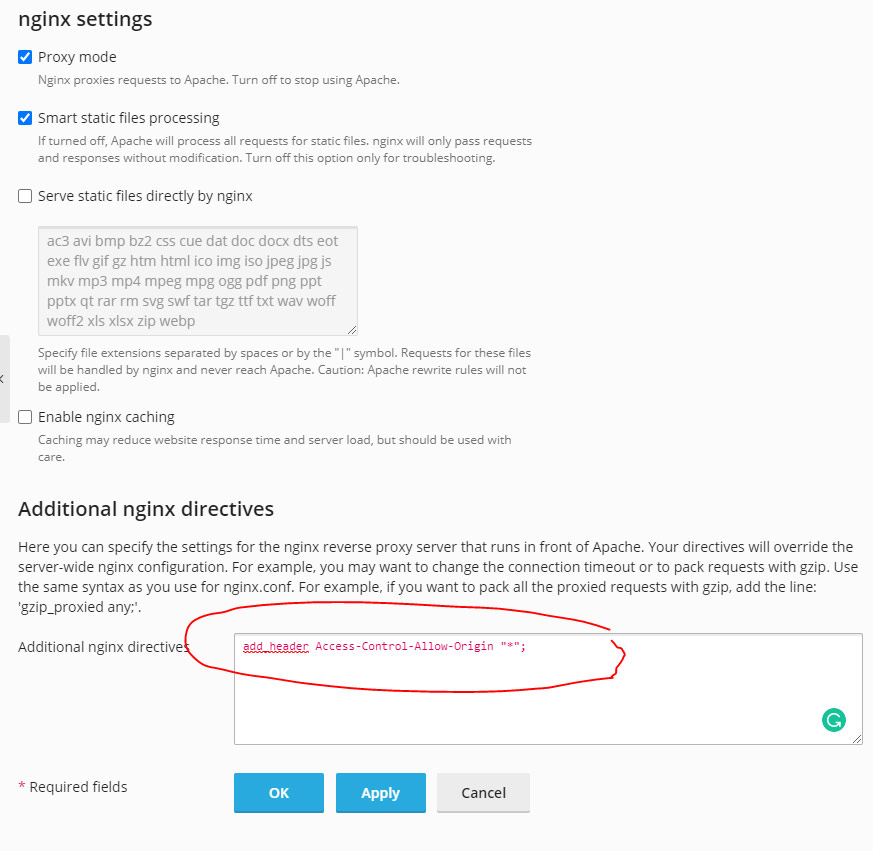
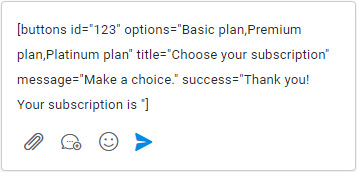 Create a rich message by inserting the shortcode into the text editor of the admin area. Customize all of the parameters with your information and send your message.

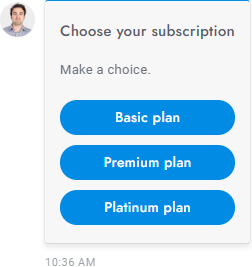 When a shortcode is used, the user sees the rich message (not the shortcode) and can select or enter the required information to complete the form submission.
 Once the rich message form has been filled out and sent by the user, a success message is shown and the form data is saved.